Custom Fields, Form Layouts & Visual Print Template Designer
Customize form fields, tailor document numbering series, and build branded invoice print templates with logos, bank details, and terms.
Learning Objectives
By the end of this guide, you will:
- Enable Form Customization and add custom fields to any document form.
- Configure Document Number Series (e.g.
SINV-2026-0001,QUOT-2026-####). - Duplicate and customize preloaded Invoice Print Templates.
- Use the Visual Print Canvas & Available Fields Drawer to position company logos, terms, and bank details.
- Edit advanced template styling using the built-in HTML/CSS code editor.
1. Custom Fields & Form Customization
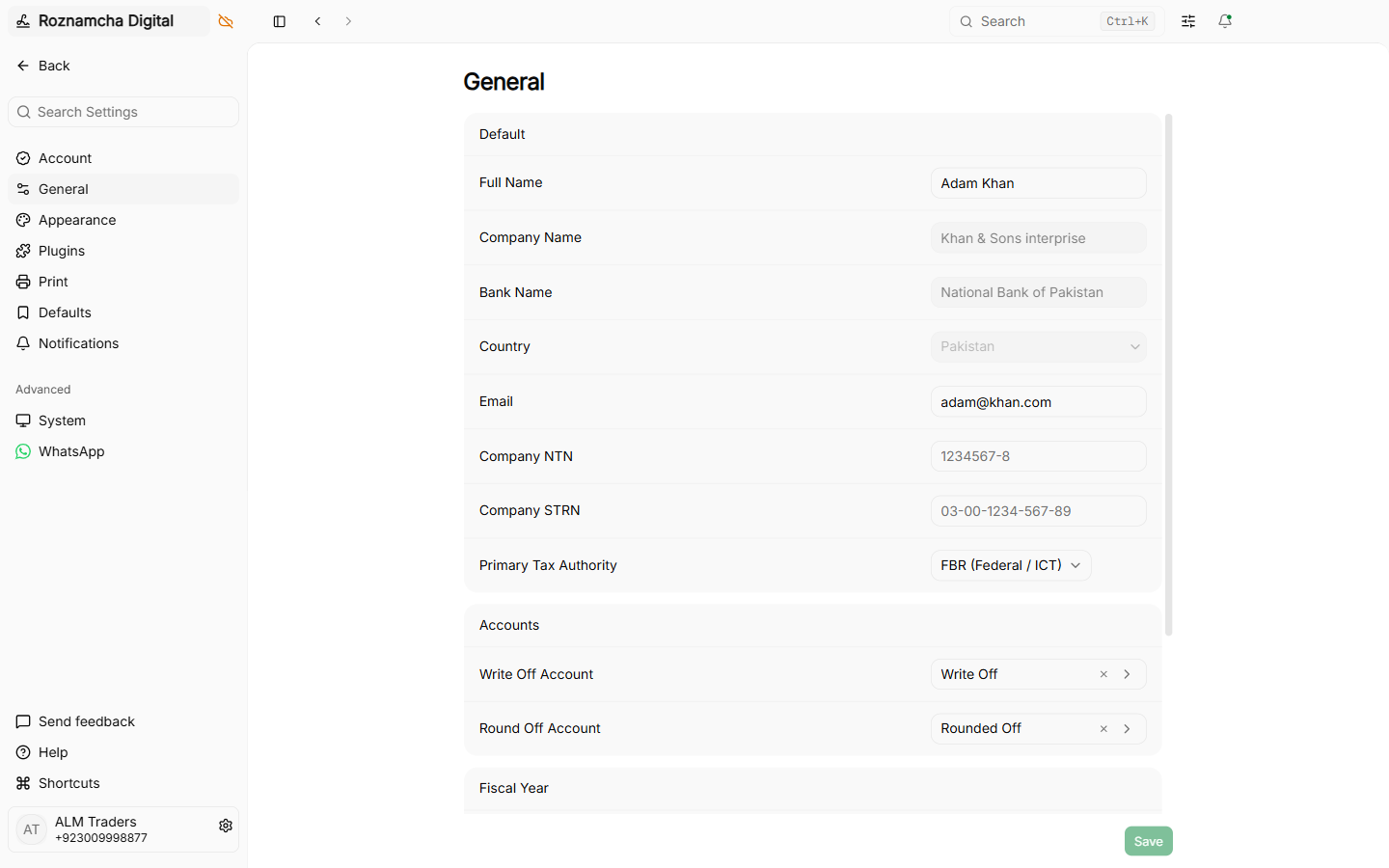
Step 1: Enable Form Customization
Navigate to Settings > Features and toggle Form Customization ON:
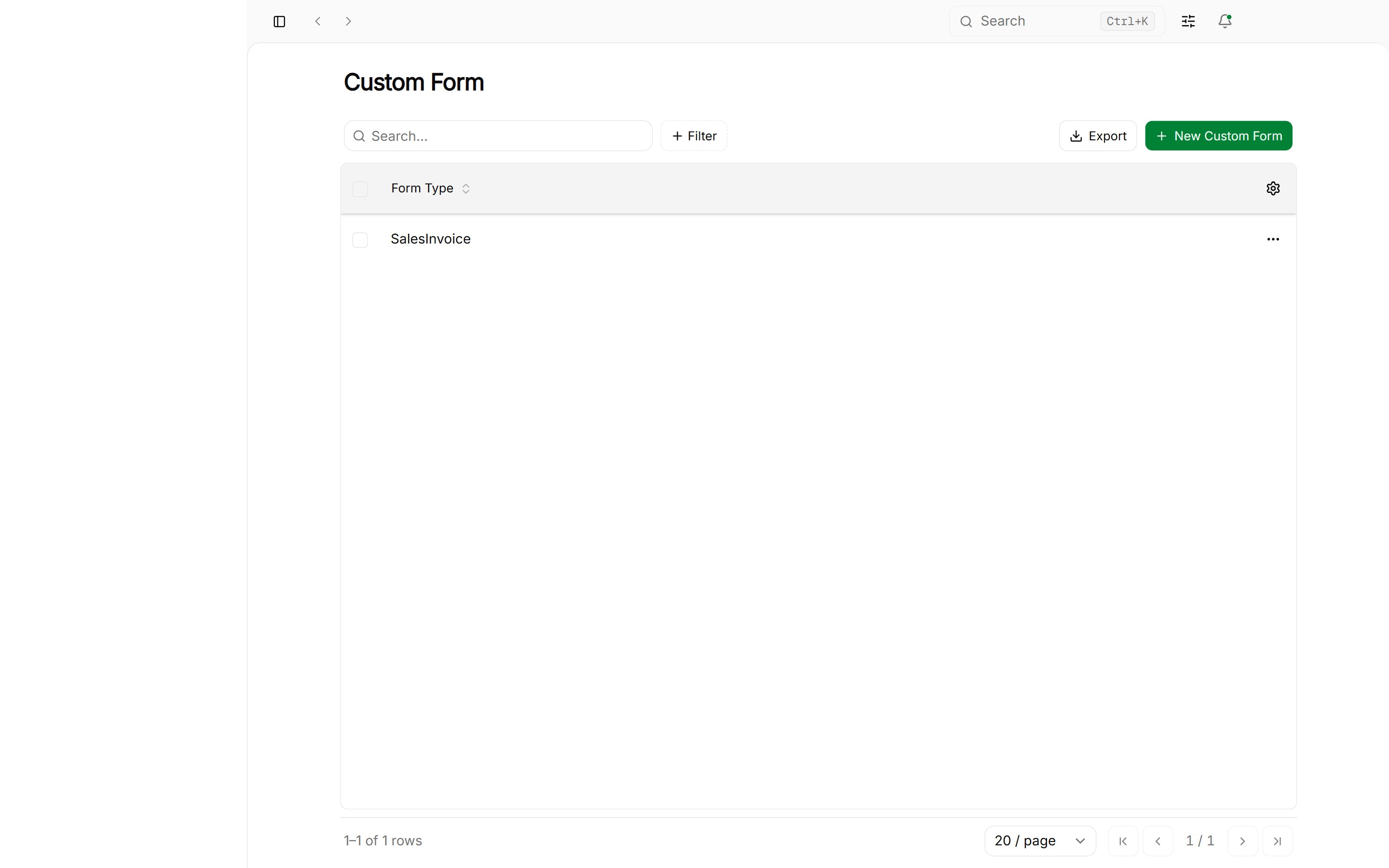
Step 2: Select the Form to Customize
Navigate to Settings > Customize Forms to view all customizable DocTypes:
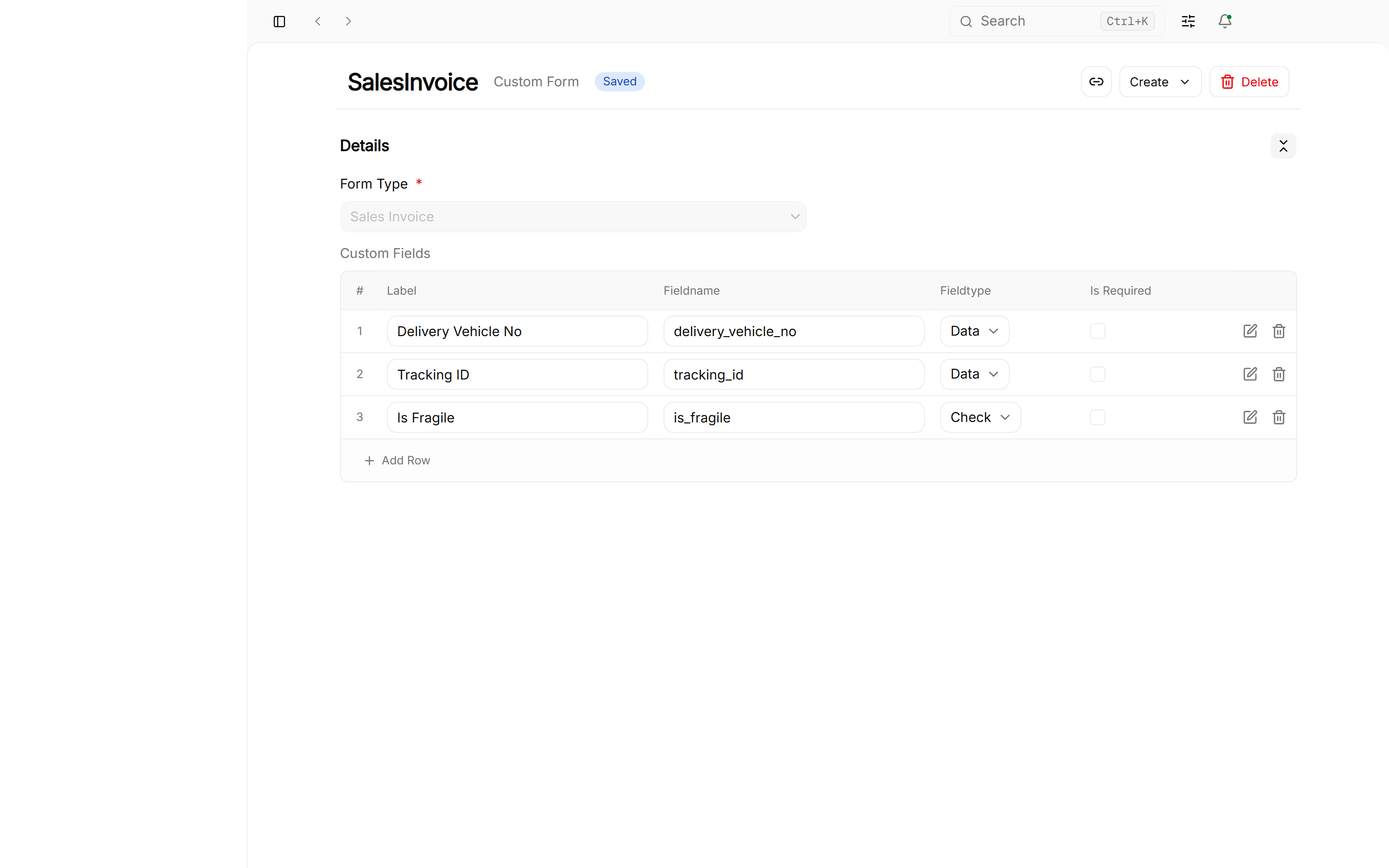
Step 3: Add Custom Fields
Click on Sales Invoice (or any other document) to open the Field Editor:
The 16 Supported Field Types
Roznamcha Digital includes 16 native field controls:
| Field Type | Input Control & Behavior | Example Use Case |
|---|---|---|
Data | Single-line plain text | Vehicle Registration Number, Bilty / Tracking ID |
Text | Multi-line text area | Special Delivery Instructions, Inspection Notes |
Select | Pre-configured dropdown options | Sales Channel (Counter, WhatsApp, Online, Distributor) |
Link | Foreign key relation to another DocType | Sales Agent, Referred By Customer, Branch Location |
Dynamic Link | Polymorphic link pointing to variable entity types | Dynamic Party Reference |
Date | Interactive calendar date picker | Warranty Expiration Date, Promised Delivery Date |
Date Time | Combined date and exact time stamp | Goods Dispatch Timestamp |
Check | Boolean toggle checkbox | Fragile Item, Customer Confirmed via Phone |
Int | Whole integer counter | Number of Cartons / Bundles |
Float | Decimal number | Gross Weight (Kg), Volume (CBM) |
Currency | Formatted monetary currency value | Special Freight Surcharge, Custom Customs Duty |
Autocomplete | Searchable drop-down for long lists | City / Postal Area Selector |
Color | Visual hex color picker | Color Swatch / Tagging |
Attach Image | Embedded image thumbnail upload | Product Condition Photo, Customer ID Copy |
Attachment | PDF / file attachment upload | Signed Delivery Challan Scan, Quality Test Certificate |
Table | Embedded child data grid | Custom Multi-row Accessory Breakdown |
Custom Sections & Tab Placement
Organize fields cleanly across your forms:
- Form Section: Groups related custom fields into distinct visual cards.
- Form Tab: Creates dedicated tabs (e.g. Logistics, Quality Control, Customs) to prevent cluttering the main document view.
Live Form Rendering:
Once saved, your custom fields immediately render on the active document form:
Data Safety Warning on Custom Field Deletion: Deleting a custom field row permanently purges all historical values stored in that field across all previously saved records in your SQLite database. If a field is obsolete, consider leaving it unrequired or renaming it rather than deleting active historical data.
To remove a custom field, select it in the editor and click Delete:
2. Document Number Series & Prefixes
Roznamcha Digital gives you full control over how document identifier numbers are generated:
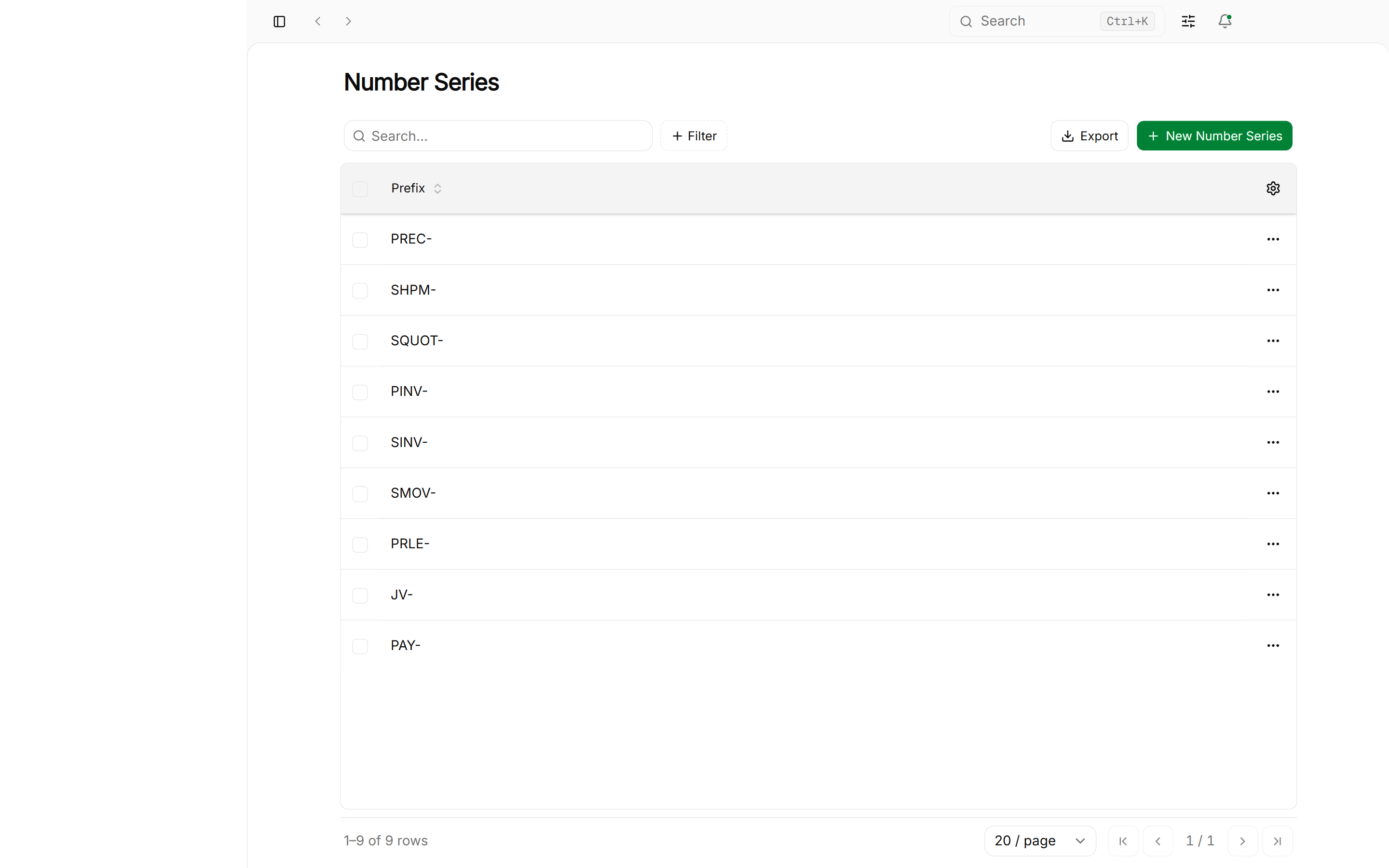
Navigate to Settings > Number Series:
Editing a Number Series:
Click on a series (e.g. Sales Invoice):
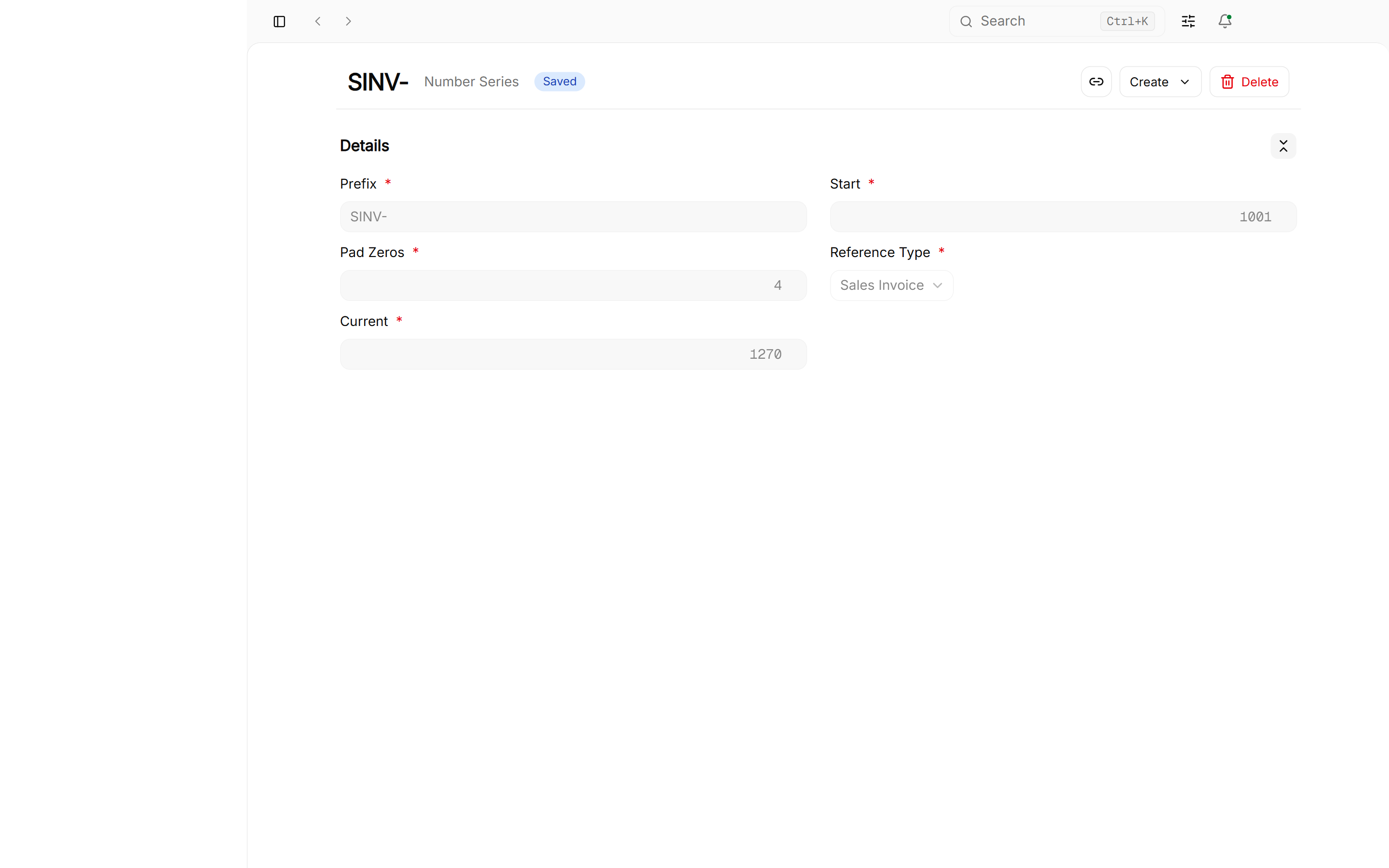
- Prefix Pattern: Enter your prefix format (e.g.
INV-2026-orRET-POS-). - Current Sequence Value: Set the starting counter (e.g. start at
500if continuing from legacy paper receipt books).
When creating a new invoice, you can select the active numbering series from the dropdown:
3. Visual Print Template Designer
Create beautiful, branded tax invoices, thermal POS slips, quotations, and payment vouchers.
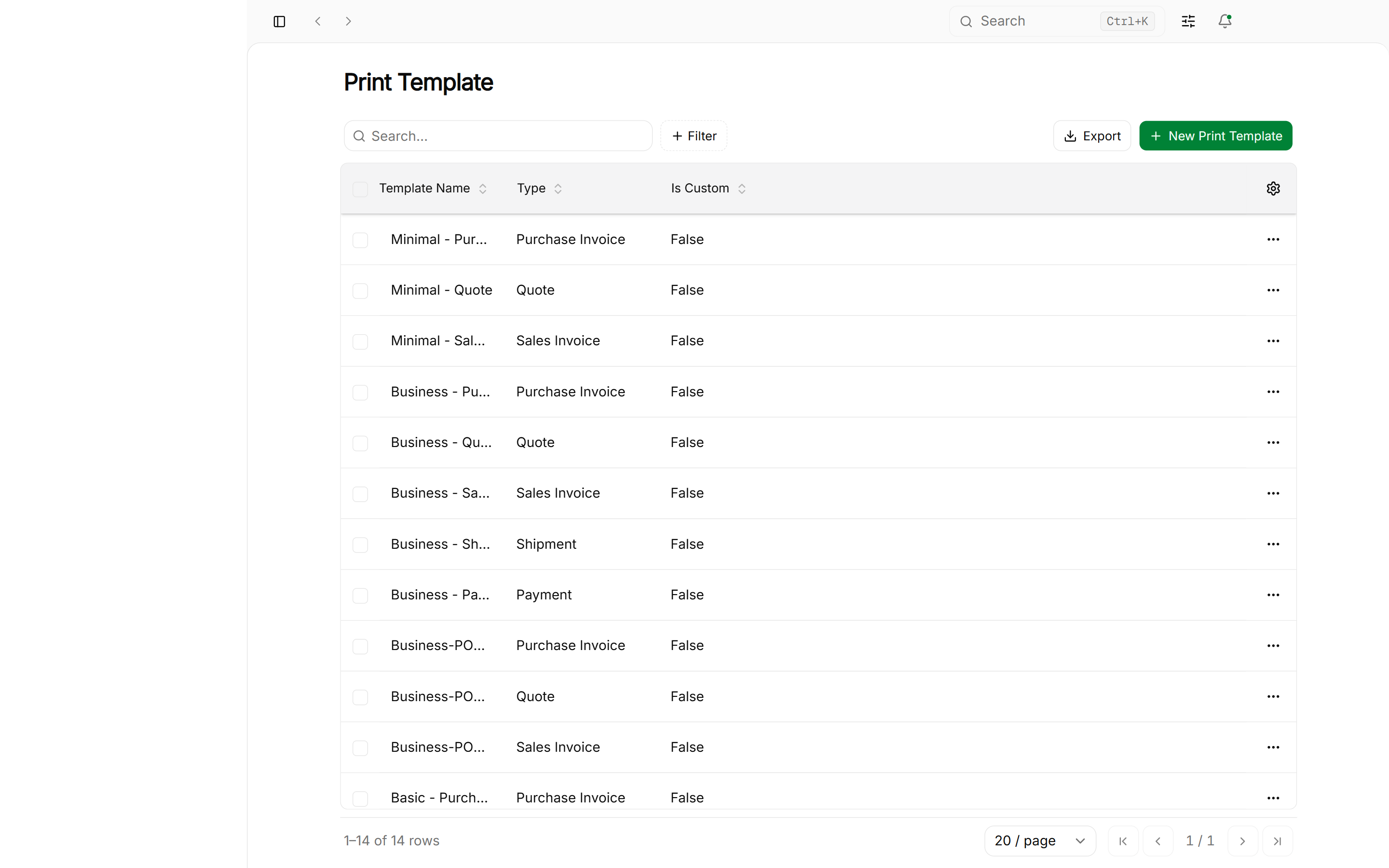
Navigate to Settings > Print Templates:
Duplicating a Preloaded Template:
Preloaded system templates are protected. To customize one, click Duplicate:
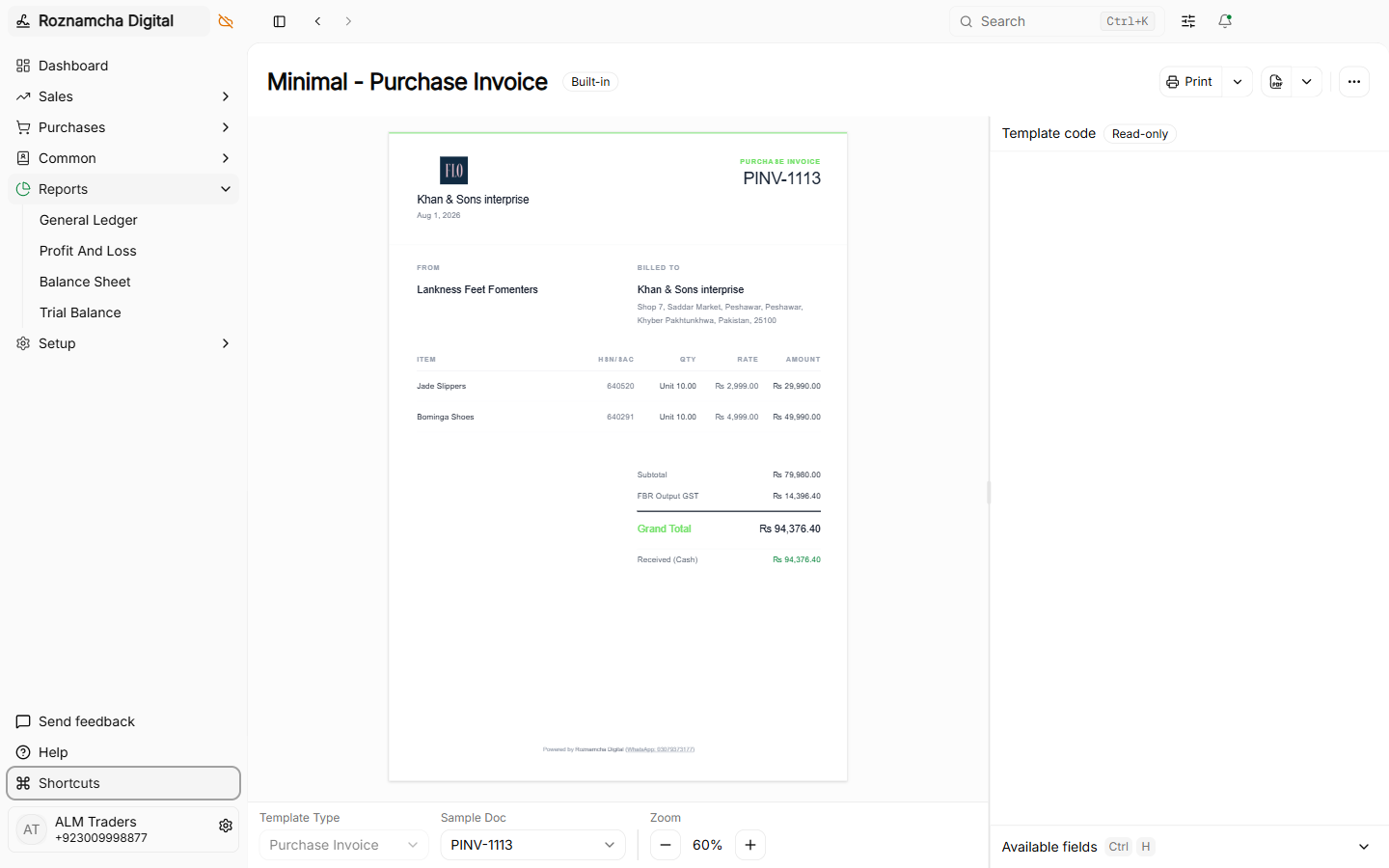
Enter a name for your custom template (e.g. “Al-Rehman Branded Tax Invoice”) and click Duplicate.
4. The Template Canvas & Fields Drawer
Roznamcha Digital opens the interactive Print Template Canvas Builder:
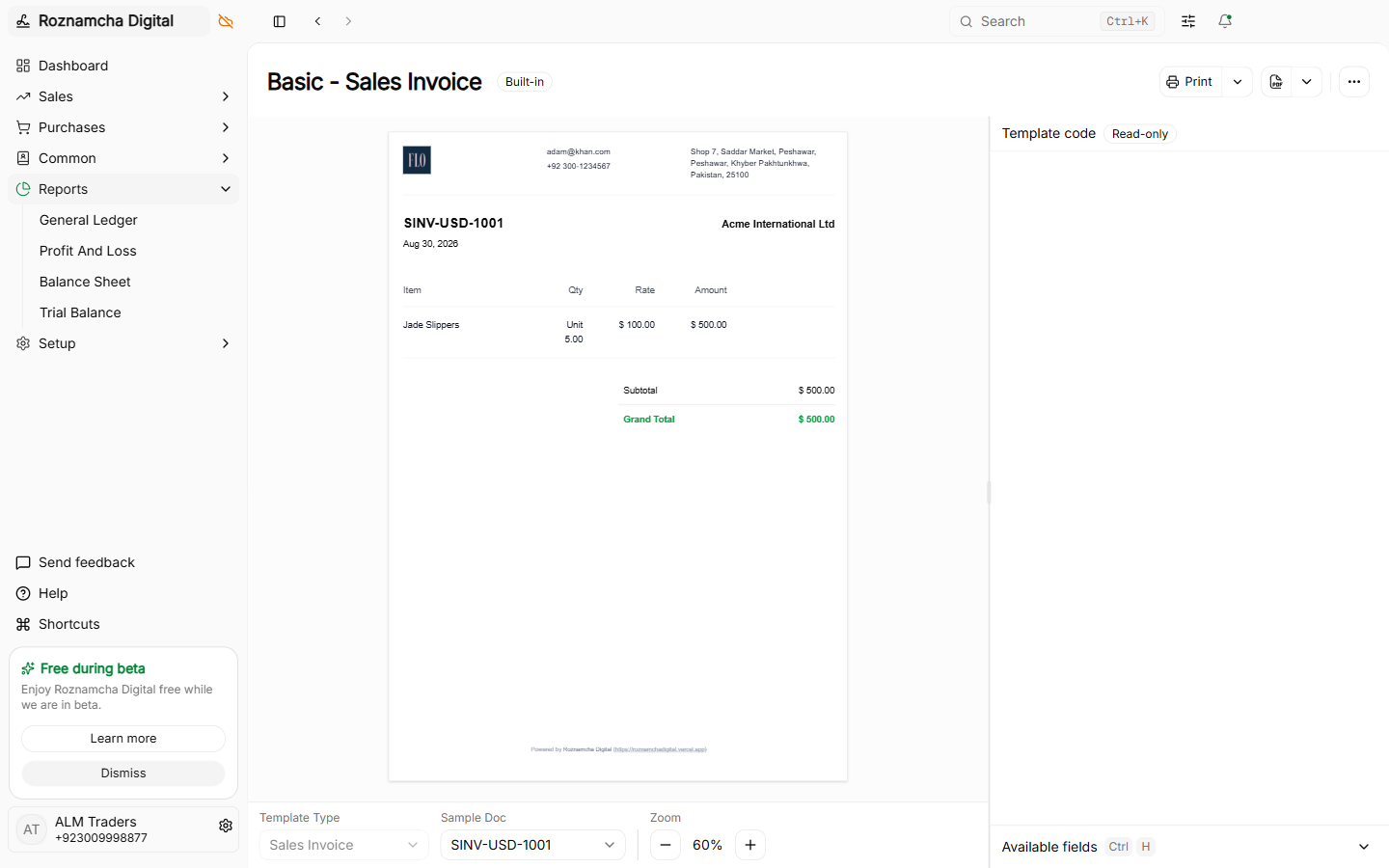
Adding Fields from the Available Fields Drawer:
Click Available Fields to open the side drawer containing all document data tags:
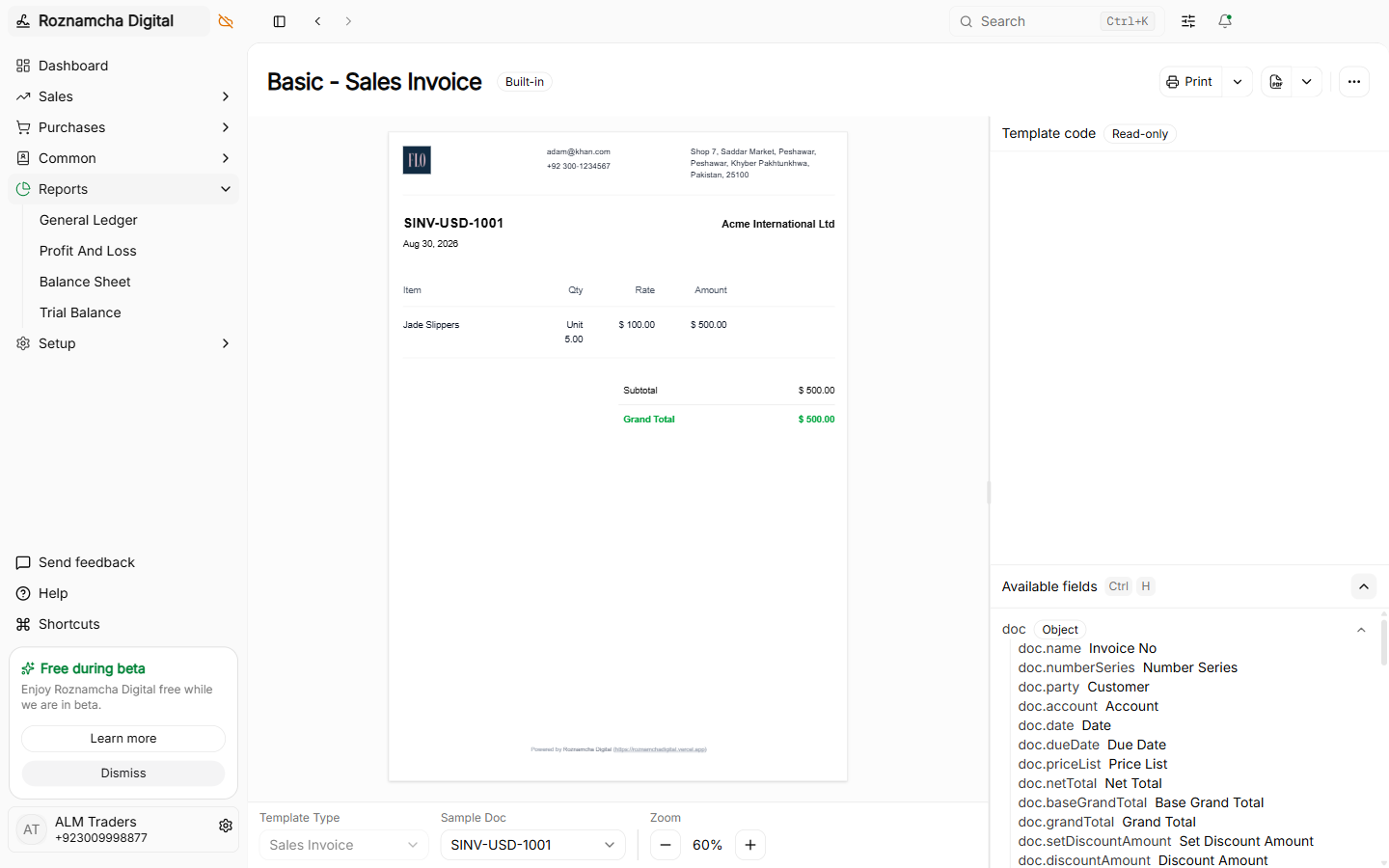
- Company Elements: Logo, Company Name, Address, NTN / STRN, Phone, Email.
- Customer Elements: Client Name, WhatsApp Phone, Delivery Address, TRN / Tax ID.
- Item Table Elements: Item Code, Description, UOM, Quantity, Rate, Discount, Tax %, Line Total.
- Totals & Summary: Subtotal, Tax Breakdown, Freight, Grand Total, Balance Due.
- Footer Blocks: Bank Details (IBAN, Account Title), Terms & Conditions, Authorized Signature line.
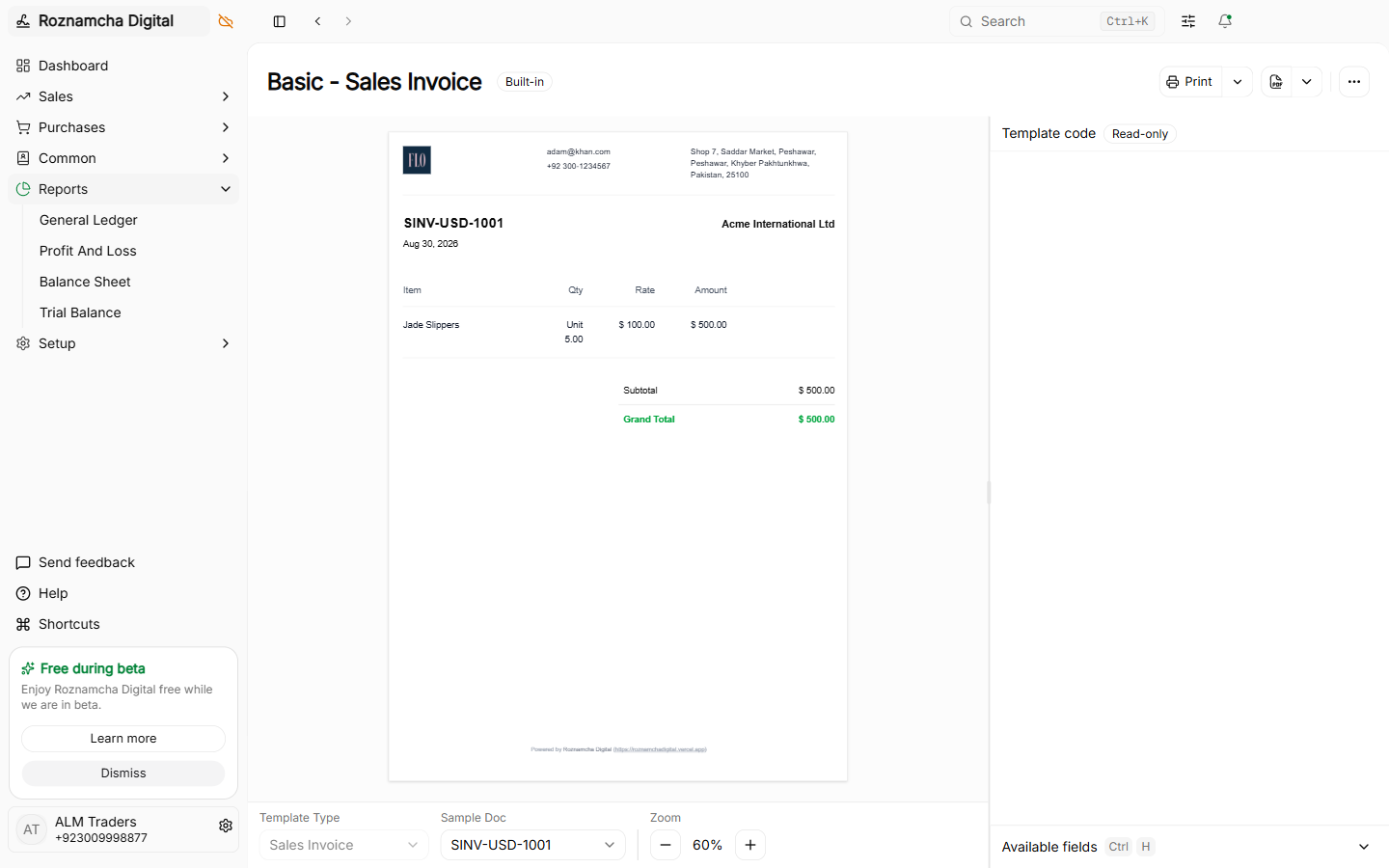
Advanced HTML & CSS Code Editor:
For complete design freedom, switch to the Code Editor tab to edit HTML templates and CSS styles directly:
Common Pitfalls & Best Practices
Do Not Delete Number Series with Existing Submitted Records: Changing or resetting a number series counter backwards may cause duplicate numbering conflicts with existing historical documents.
Always Test Print Templates on Scratch Drafts: After designing a new print template, open a draft sales invoice, click Print (Ctrl+P), select your new template, and verify layout alignment before printing live customer bills.
Knowledge Check
Financial Statements, General Ledger & Business Analytics
Generate and interpret General Ledgers, Profit & Loss Statements, Balance Sheets, Trial Balances, Stock Valuations, and Aging Reports.
System Maintenance, Backup Recovery & Troubleshooting
Master SQLite database backups, disaster recovery, multi-device sync, system settings panels, and troubleshooting.