Sales Cycle: Quotations, Invoicing, Discounts & Returns
Master the full sales workflow: Sales Quotations, Invoices, Line-Item & Bill Discounts, Multi-Currency billing, and Credit Notes.
Learning Objectives
By the end of this guide, you will:
- Master the complete sales lifecycle: Draft → Submitted → Paid / Returned.
- Create itemized Sales Invoices with real-time tax and subtotal calculations.
- Configure Line-Item vs. Overall Bill Discounts and enable dedicated Discount Accounting.
- Issue Multi-Currency Invoices with dynamic exchange rate conversions.
- Process Sales Returns (Credit Notes) with automatic General Ledger reversals.
The Sales Document Lifecycle
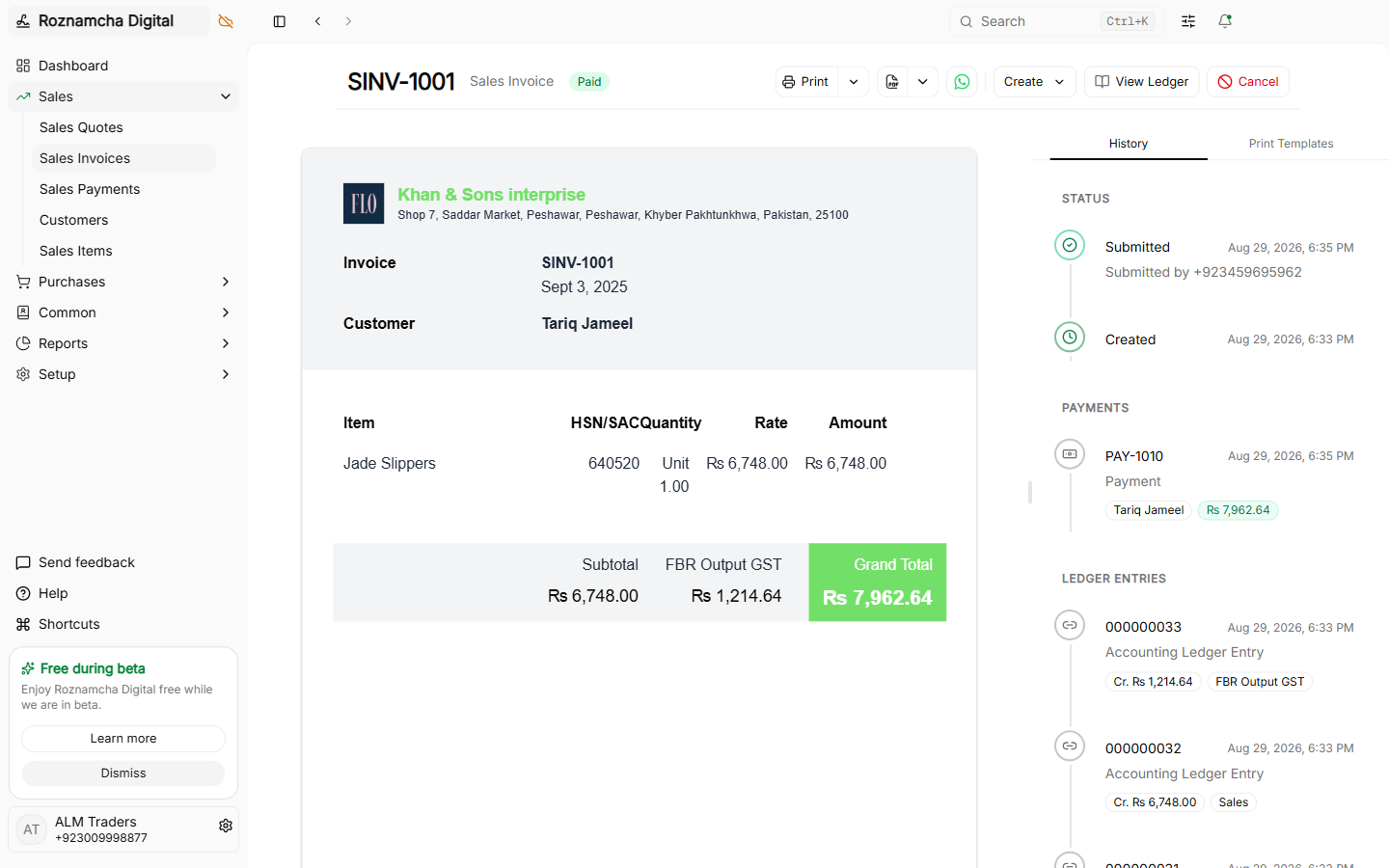
Every sales transaction follows a controlled lifecycle to guarantee ledger integrity:
Creating a Sales Invoice Step-by-Step
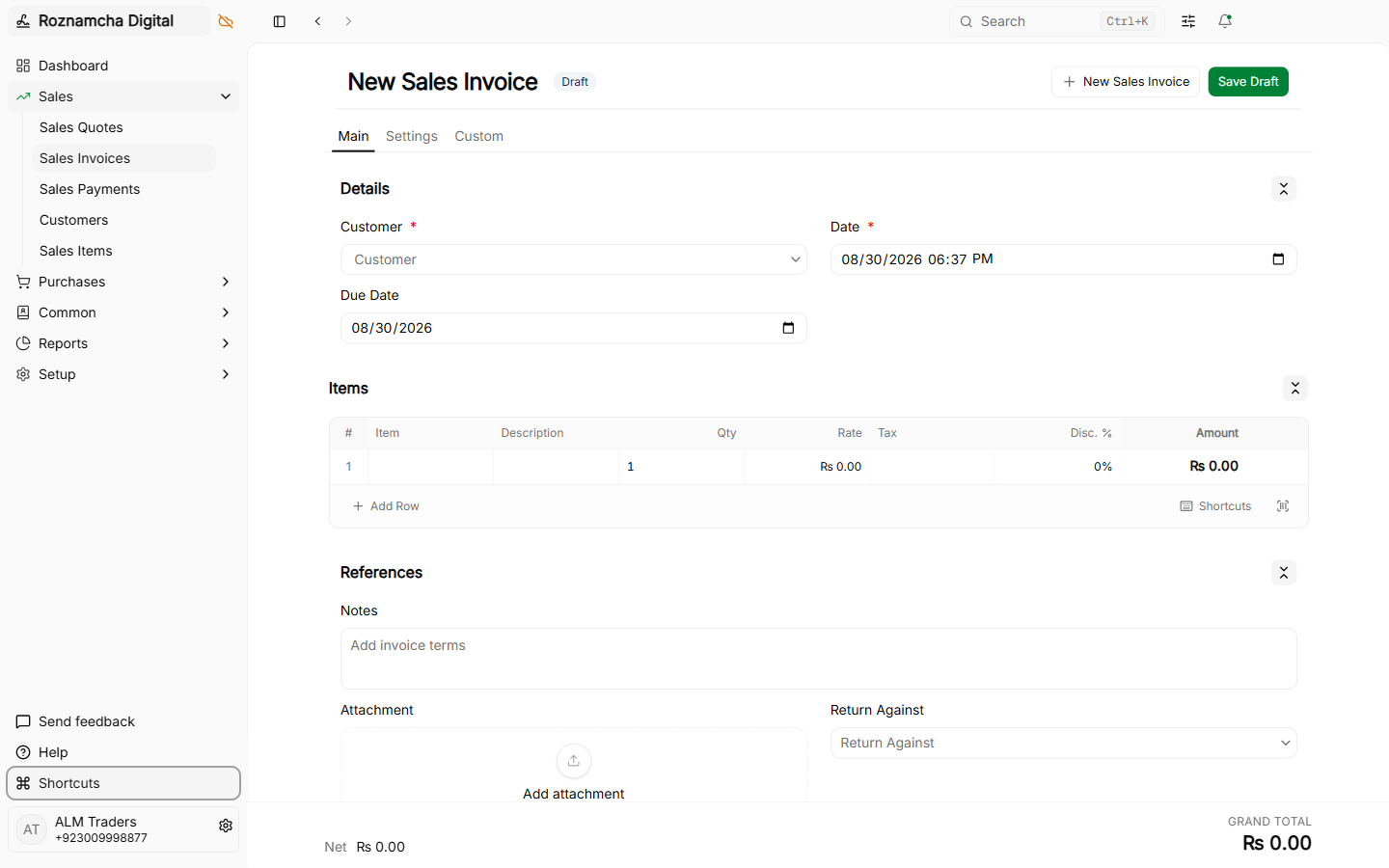
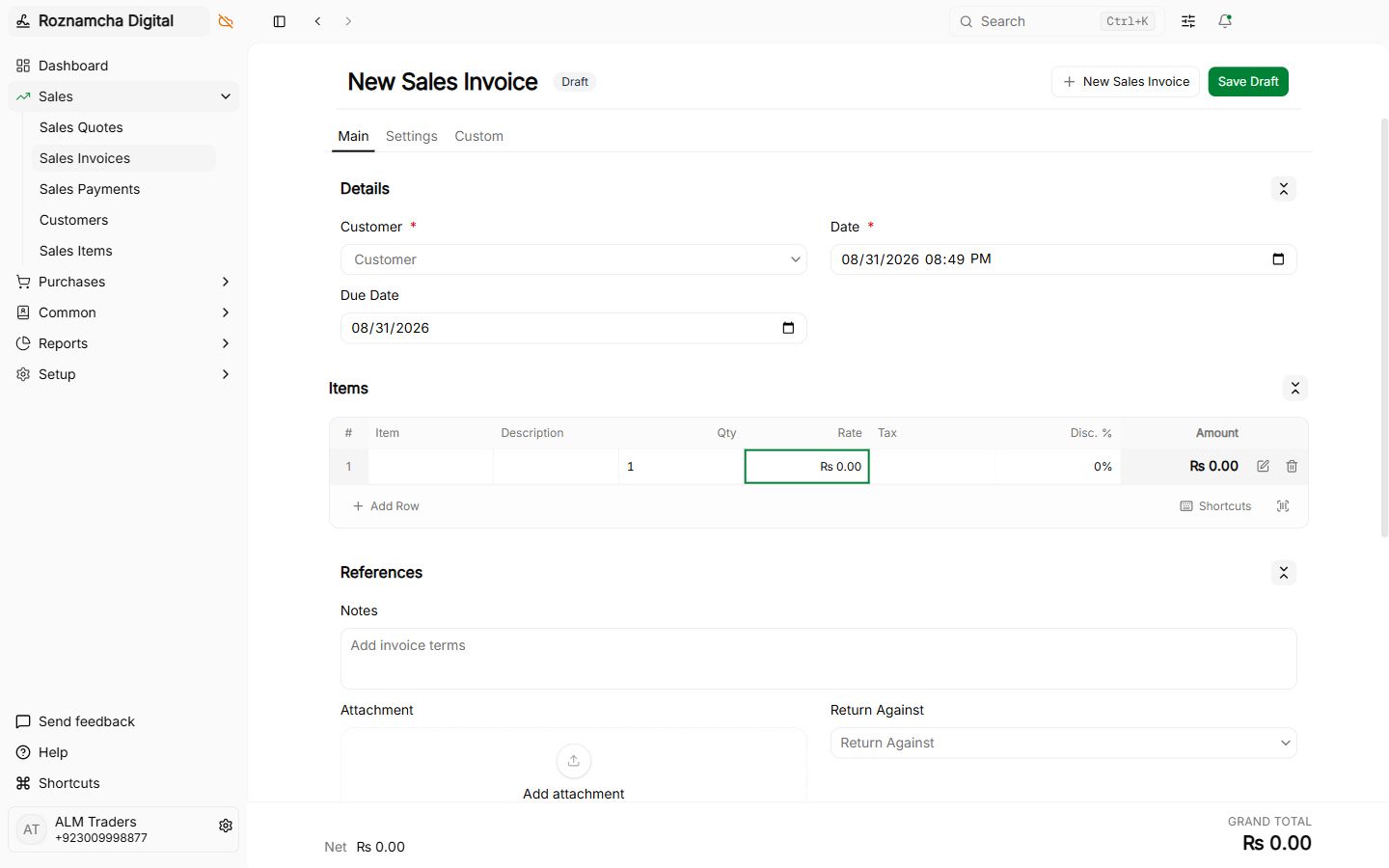
Navigate to Accounting > Sales Invoices > New Sales Invoice (or press Ctrl+K and type New Sales Invoice).
1. Customer & Header Details
- Select the Customer. Roznamcha Digital automatically populates their default price list, payment terms, and billing address.
- Select the Invoice Date and Due Date.
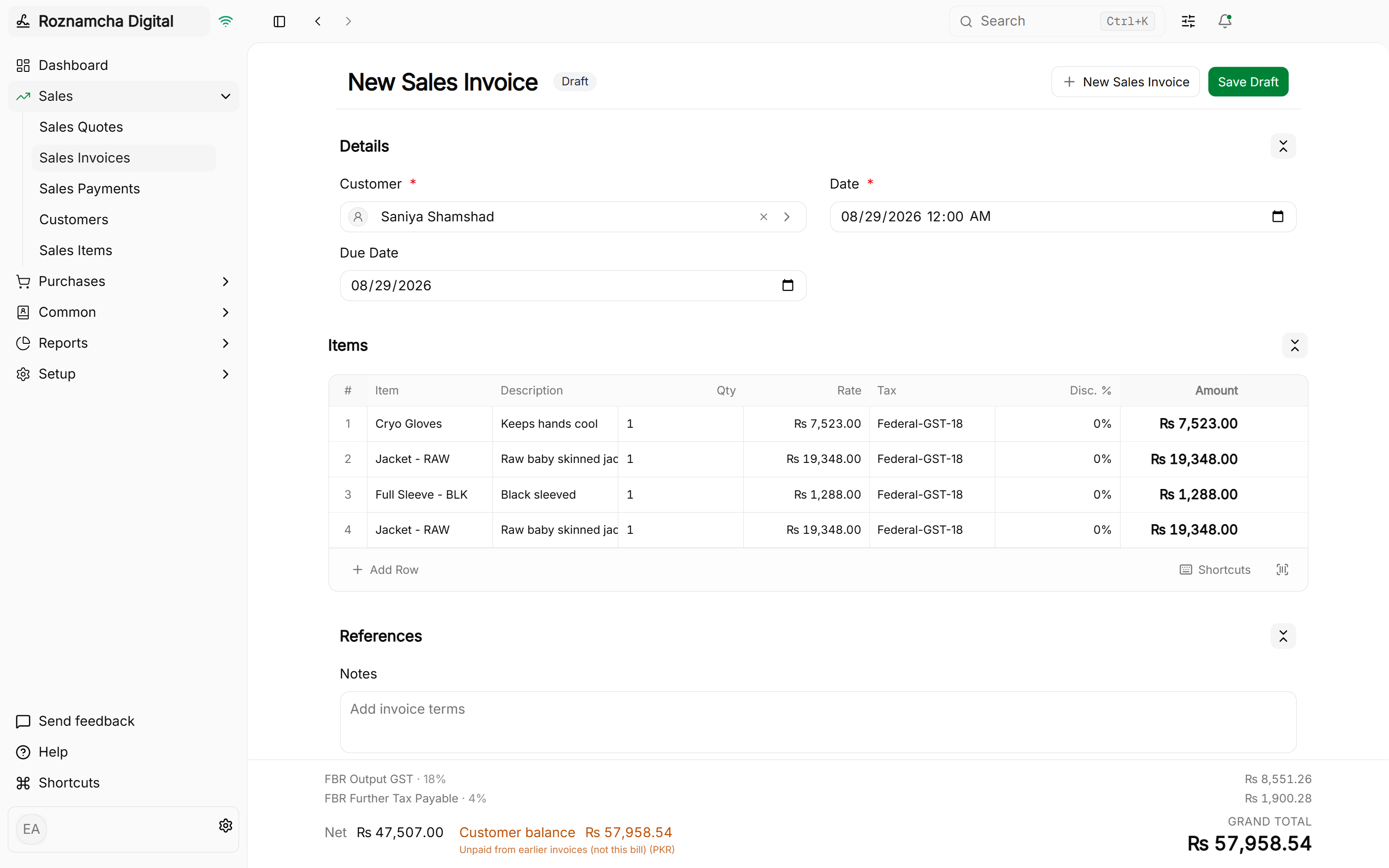
2. Adding Line Items
- Search items by code, name, or barcode scanner.
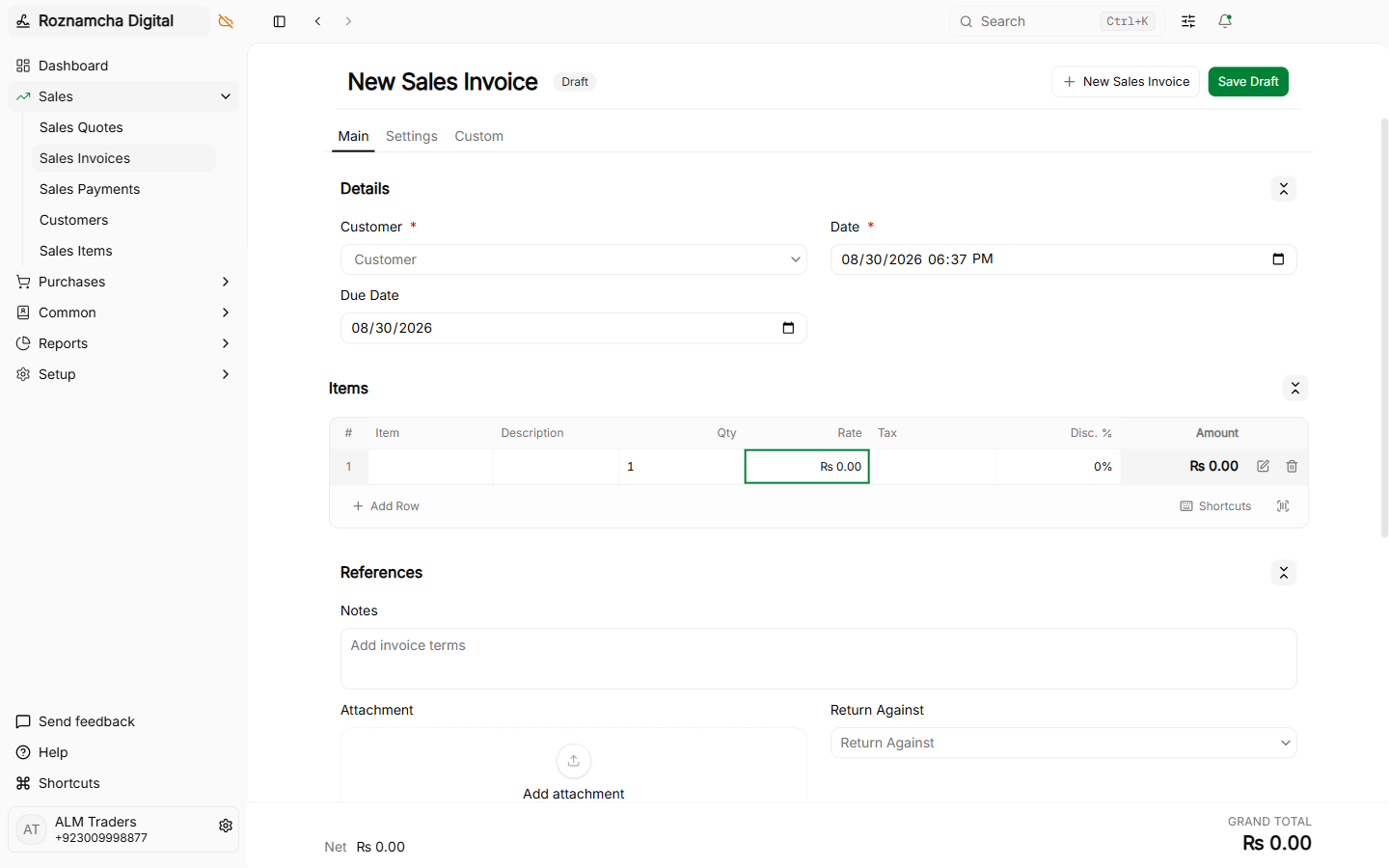
- Edit the item row to adjust quantity, selling rate, or line discount:
3. Taxes & Charges Calculation
Roznamcha Digital applies your regional tax template (e.g. FBR GST 18%) automatically across taxable line items:
4. Direct Payment & Auto Stock Transfer Toggles
Roznamcha Digital can automate downstream payment and warehouse transfers at the moment of invoice submission:
- Include Payment Toggle (Cash Sales): Automatically creates, links, and submits a
Paymentvoucher to your cash or bank ledger upon invoice submission. - Auto Stock Transfer Toggle (Instant Dispatch): When checked, automatically generates and submits a
Shipmentstock voucher from your default warehouse (Defaults > Shipment Location), deducting items from warehouse stock immediately.

Sales Quotes / Quotations & 1-Click Invoice Conversion
Before issuing a binding commercial invoice, create a Sales Quote for client approval:
- Navigate to Sales > Sales Quotes > New Sales Quote.
- Enter proposed items, discounted rates, and validity date.
- Quotations do not post journal entries or affect inventory.
- Once the client approves, click the primary action Create Invoice to automatically convert the quote into a finalized Sales Invoice without re-typing line items.
Discount Accounting: Line vs. Bill & Tax Base Logic
Roznamcha Digital provides complete control over promotional pricing and discount taxation:
Discount Calculation Modes
| Mode | Mathematical Formula | Statutory Compliance Use Case |
|---|---|---|
| Discount Before Tax (Default) | Taxable Base = Gross Subtotal - DiscountTax Amount = Taxable Base * Tax Rate | Standard commercial invoicing where statutory sales tax is payable only on the net amount received. |
| Discount After Tax | Tax Amount = Gross Subtotal * Tax RateGrand Total = (Gross Subtotal + Tax) - Discount | Used when the full tax liability must be declared on original list price (e.g. specific regulated tariff items). |
Formal Discount Expense Accounting
Under Settings > Features > Discount Accounting, you can route discounts to a dedicated ledger:
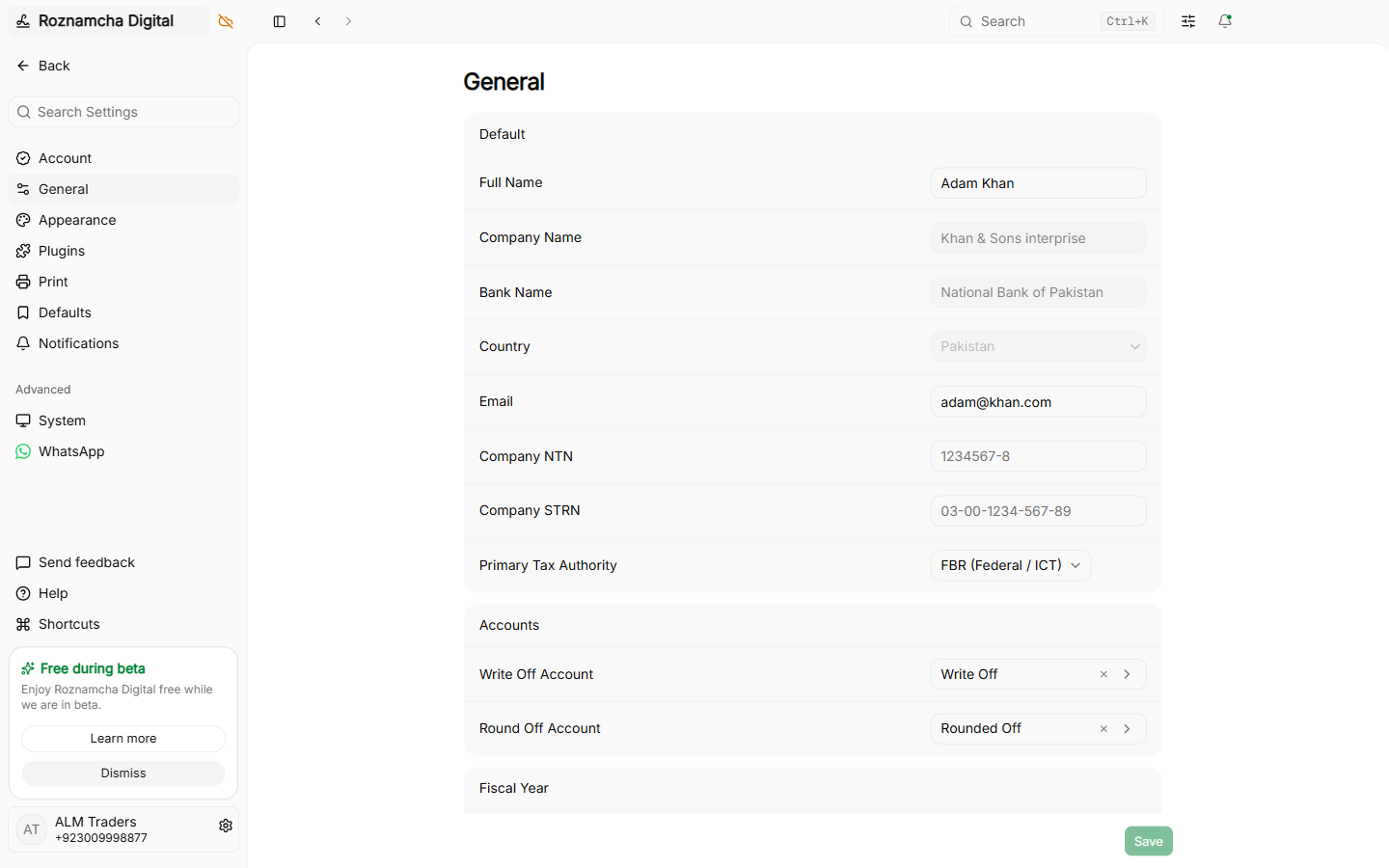
When enabled, discounts are not silently deducted from revenue; they are formally posted as a debit to 5120 Discounts Allowed, giving executive reporting full visibility into total concession costs.
Multi-Currency Invoicing & Foreign Trade
For export businesses billing in foreign currencies (USD, EUR, AED, GBP):
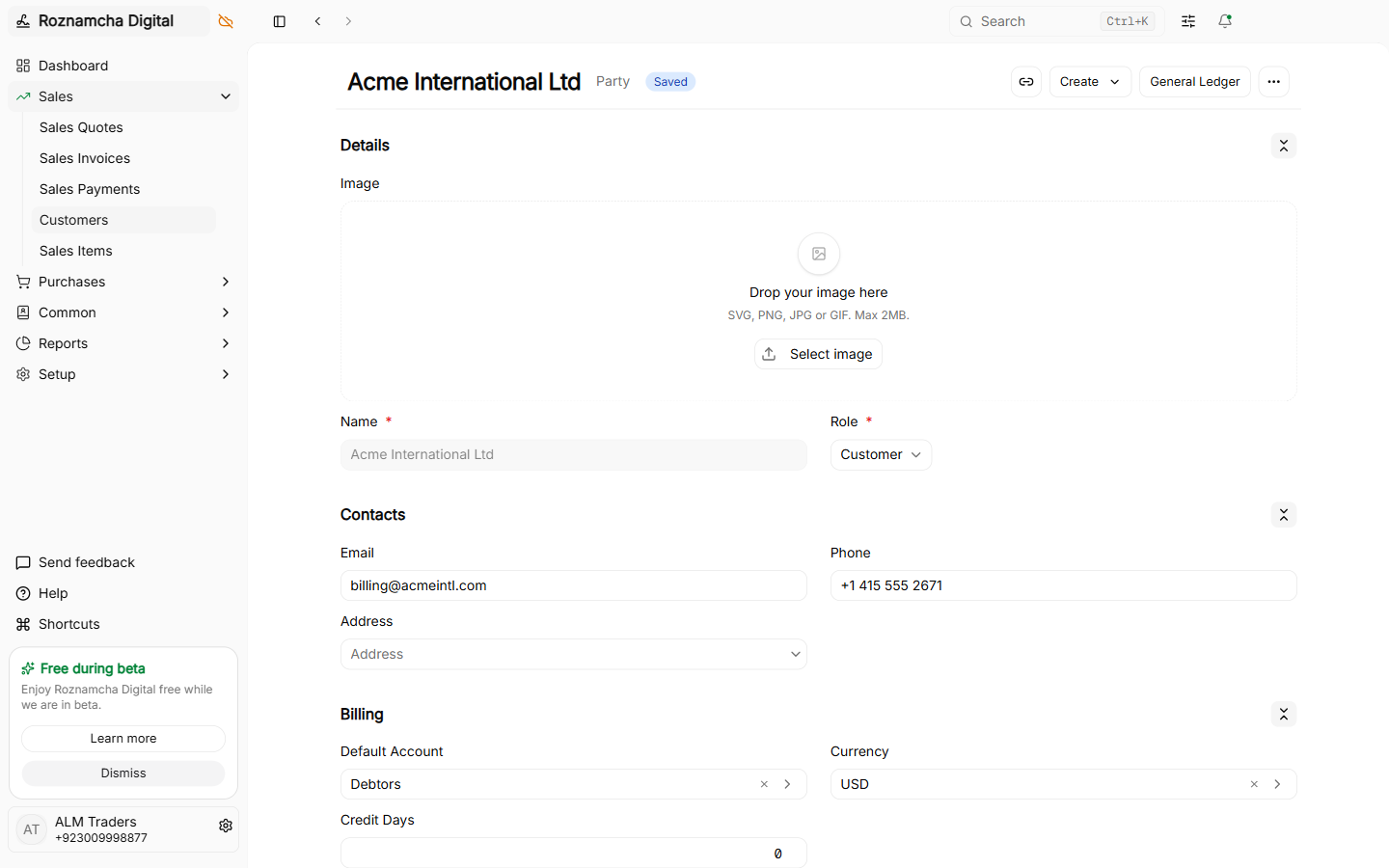
- Set the Customer's default currency to
USDin their party record:
- Your company base ledger remains in
PKR:
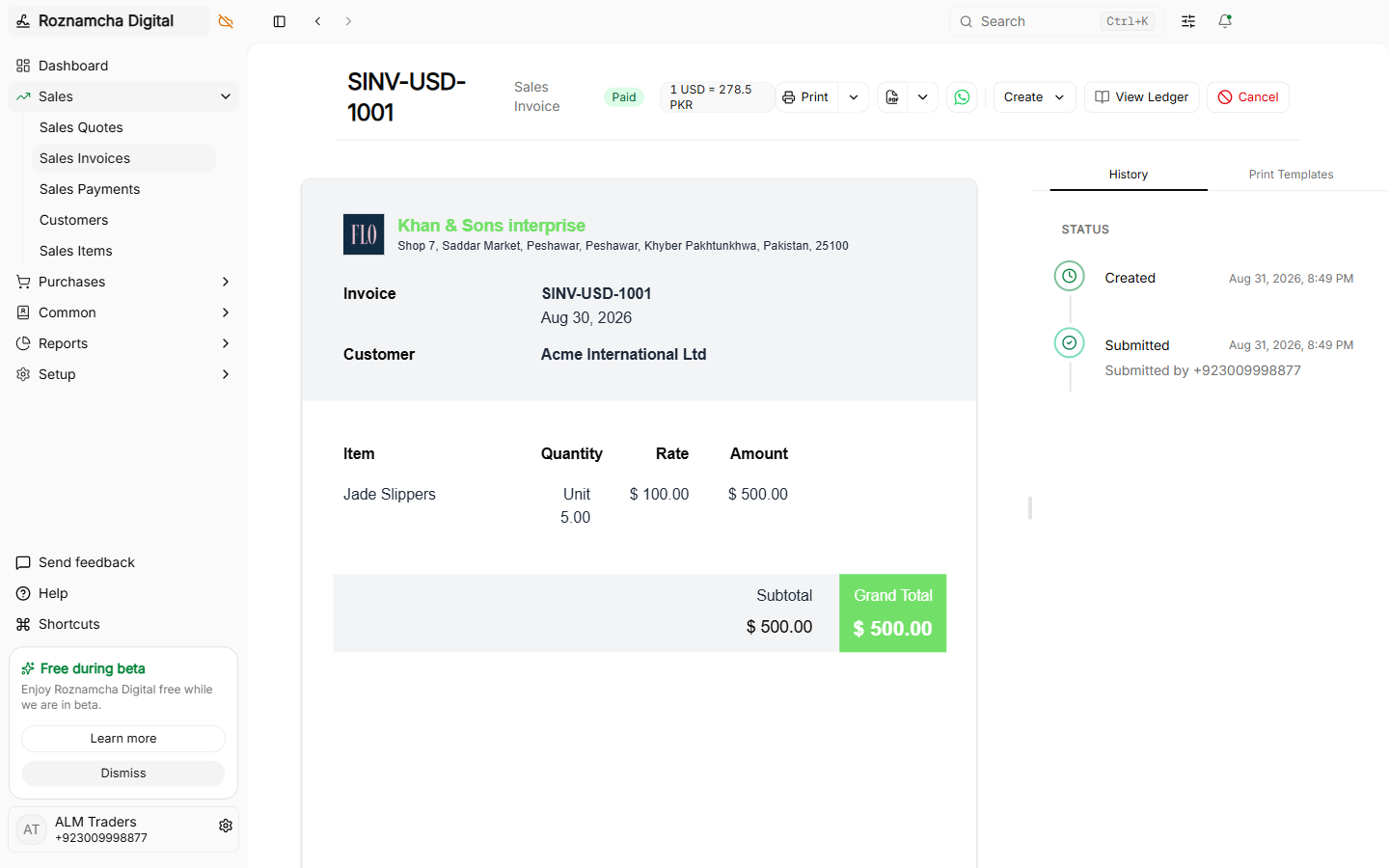
- When creating the invoice, enter the transaction in USD. Enter the active Exchange Rate (e.g.
1 USD = 280.50 PKR):
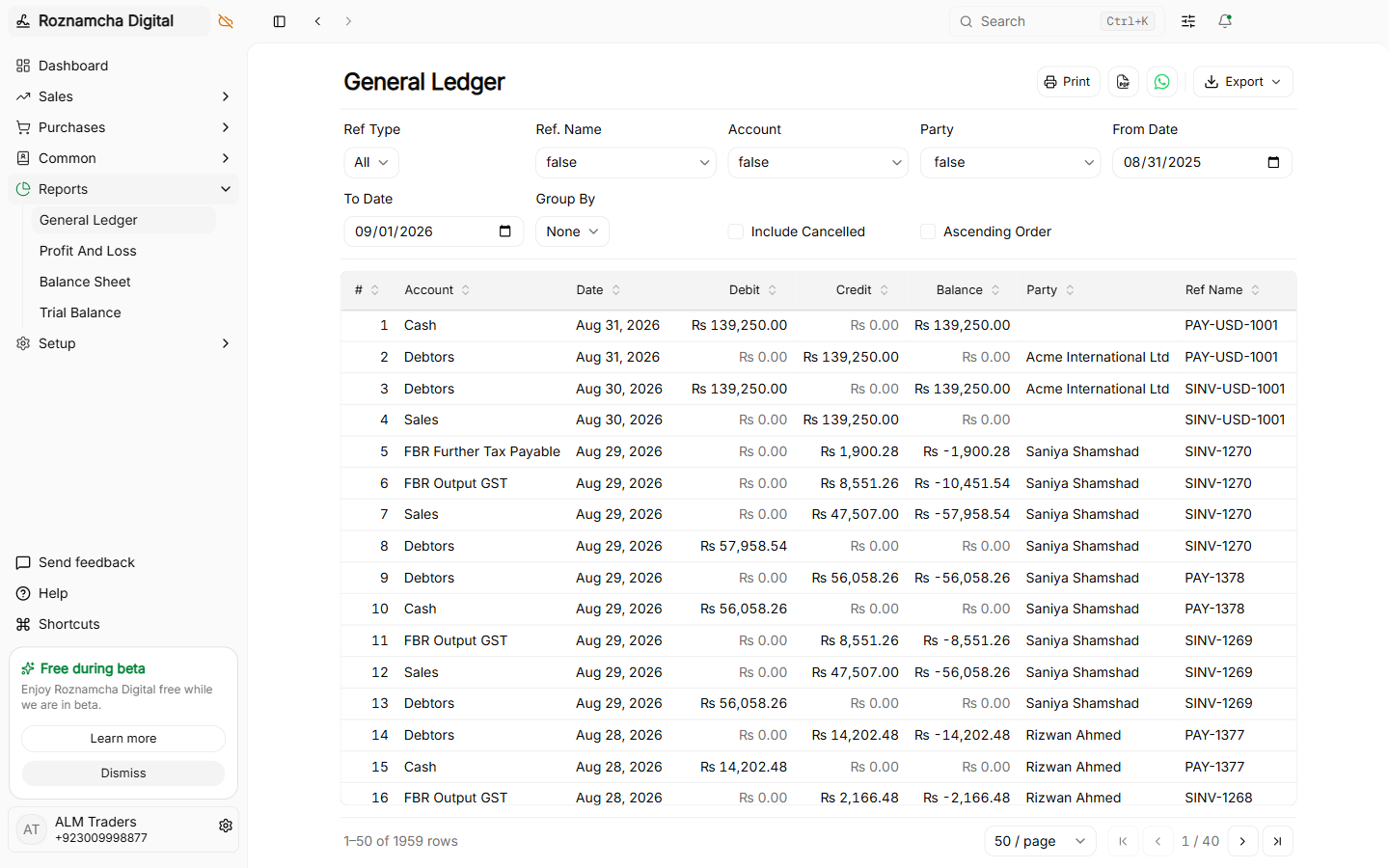
- The General Ledger automatically records both the foreign currency amount and base currency equivalent:
Print Preview & PDF Export
Click the Print icon (or press Ctrl+P) to open the print preview dialog:
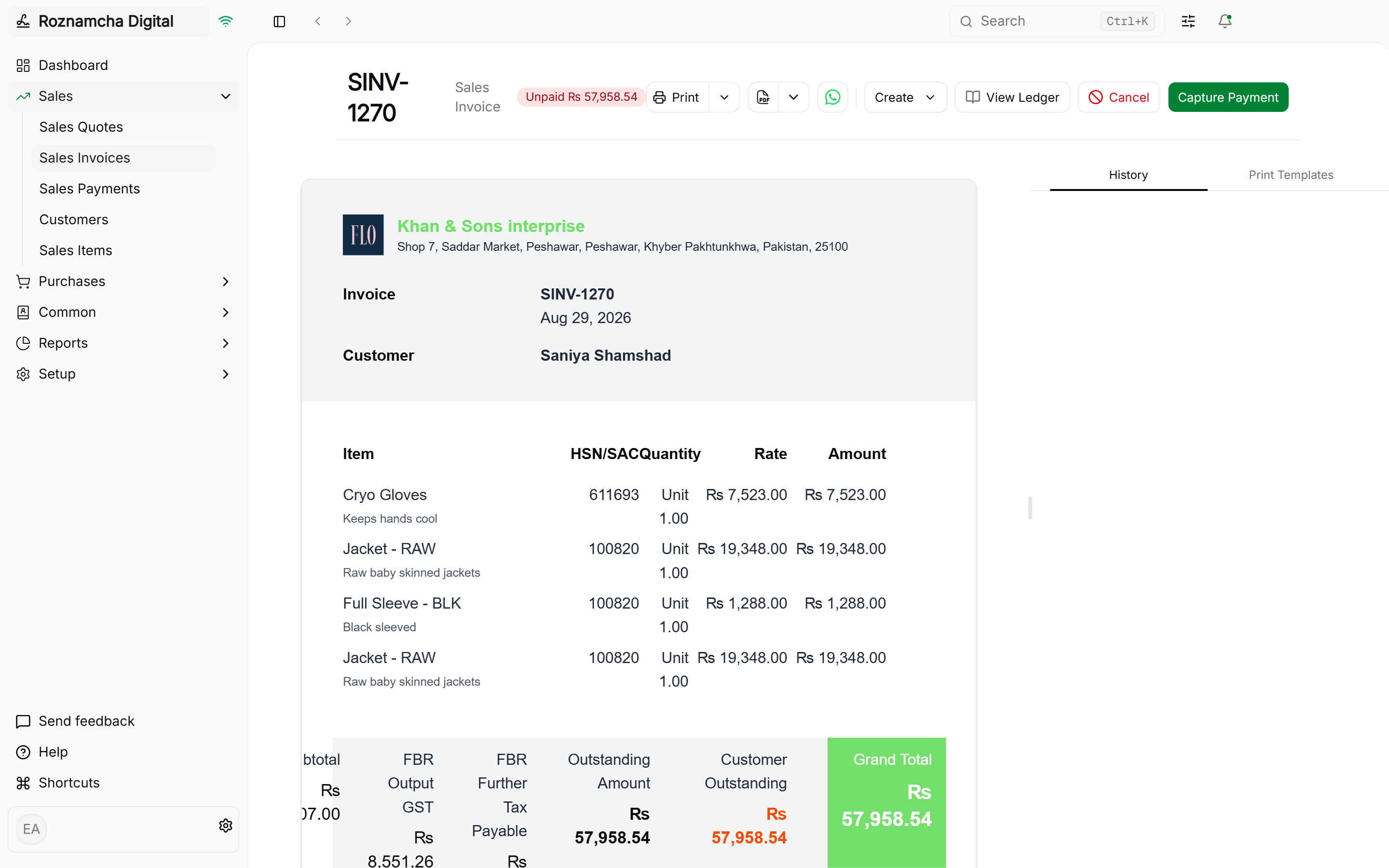
From this screen, choose from preloaded or custom branded print templates, print directly to office or POS thermal printers, or export high-resolution PDFs.
Sales Returns & Credit Notes
When a customer returns goods or requests a price credit:
1. Creating a Credit Note:
Open the original submitted invoice, click the Actions Menu (three dots) in the top header, and click Create Return:
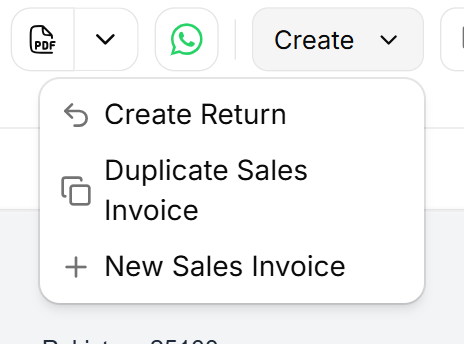
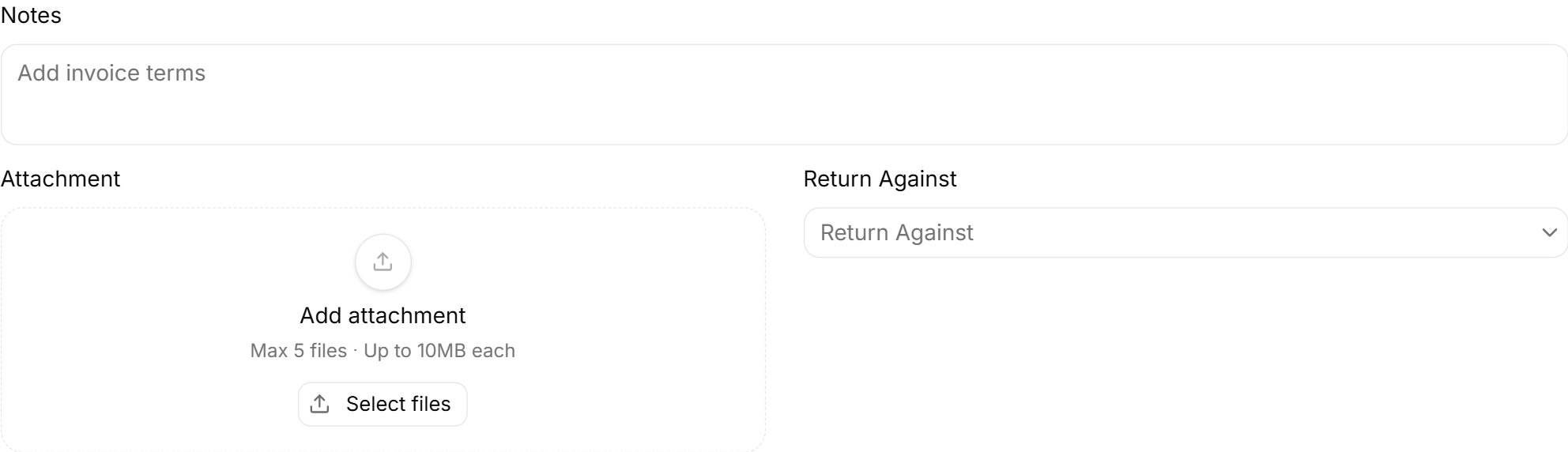
Roznamcha Digital opens a new Sales Invoice in Return (Credit Note) mode:
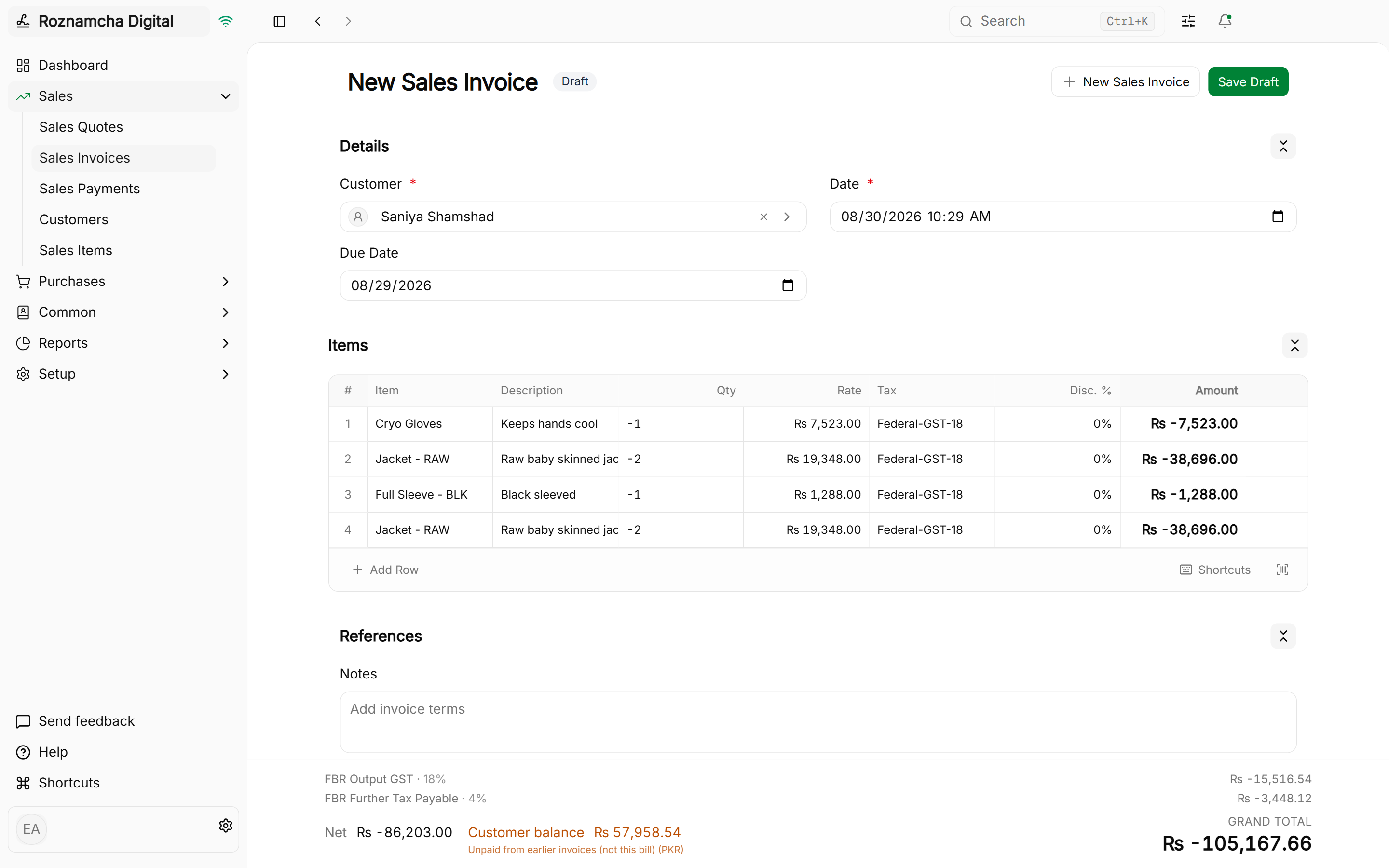
2. General Ledger Impact of a Sales Return:
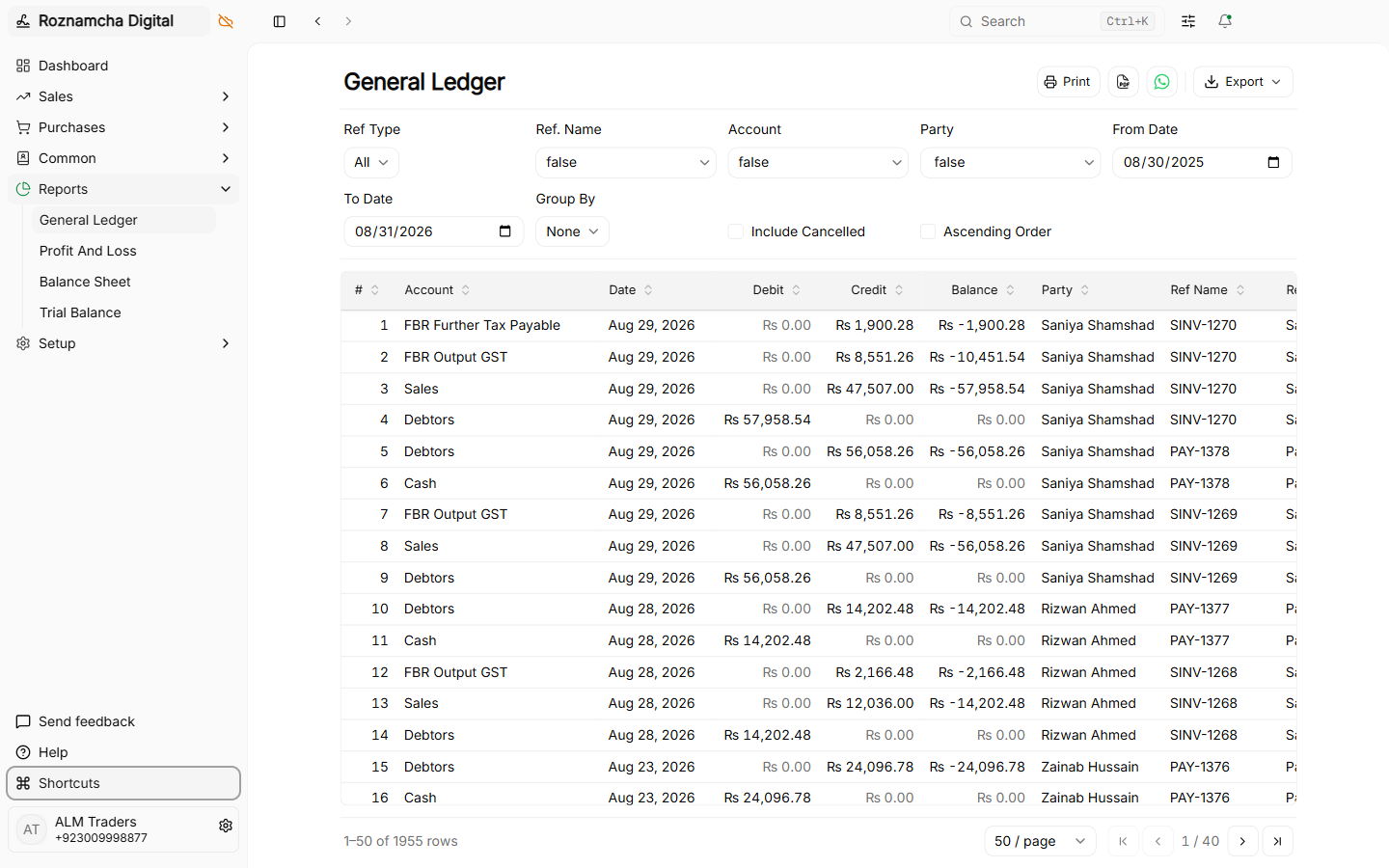
When submitted, the Credit Note automatically reverses the original accounting entries:
Common Pitfalls & Best Practices
Always Link Credit Notes via 'Return Against': Never create a standalone negative invoice without linking the original invoice number. Linking preserves the audit trail and updates the original invoice balance due.
Save as Draft Before Submitting: Draft invoices can be freely modified or deleted. Once an invoice is Submitted, it cannot be modified; it can only be amended or reversed via Credit Note.
Knowledge Check
Setting Up Opening Balances & Bulk CSV Data Migration
Migrate historical ledgers, bank balances, customer receivables, supplier payables, inventory counts, and use the CSV Import Wizard.
Procurement: Vendor Bills, Operating Expenses & Debit Notes
Manage supplier procurement, record vendor bills, book operating overhead expenses, and process purchase returns via Debit Notes.