Company Setup & Onboarding
Learn how to sign in with mobile OTP verification, complete the Setup Wizard, configure regional currencies, and manage multiple company files.
Learning Objectives
By the end of this guide, you will:
- Sign in securely using your mobile phone number and WhatsApp OTP verification.
- Navigate the Choose a Company screen to create, open, or restore company databases.
- Complete the 4-step Setup Wizard to initialize a clean business accounting profile.
- Select the appropriate Regional Chart of Accounts preset (e.g. Pakistan FBR/PRA/SRB or International).
- Switch between multiple company files in two clicks.
Sign In & Mobile Verification
Roznamcha Digital secures your account using your mobile phone number. This links your cloud backups directly to your verified WhatsApp identity without requiring complex email passwords.
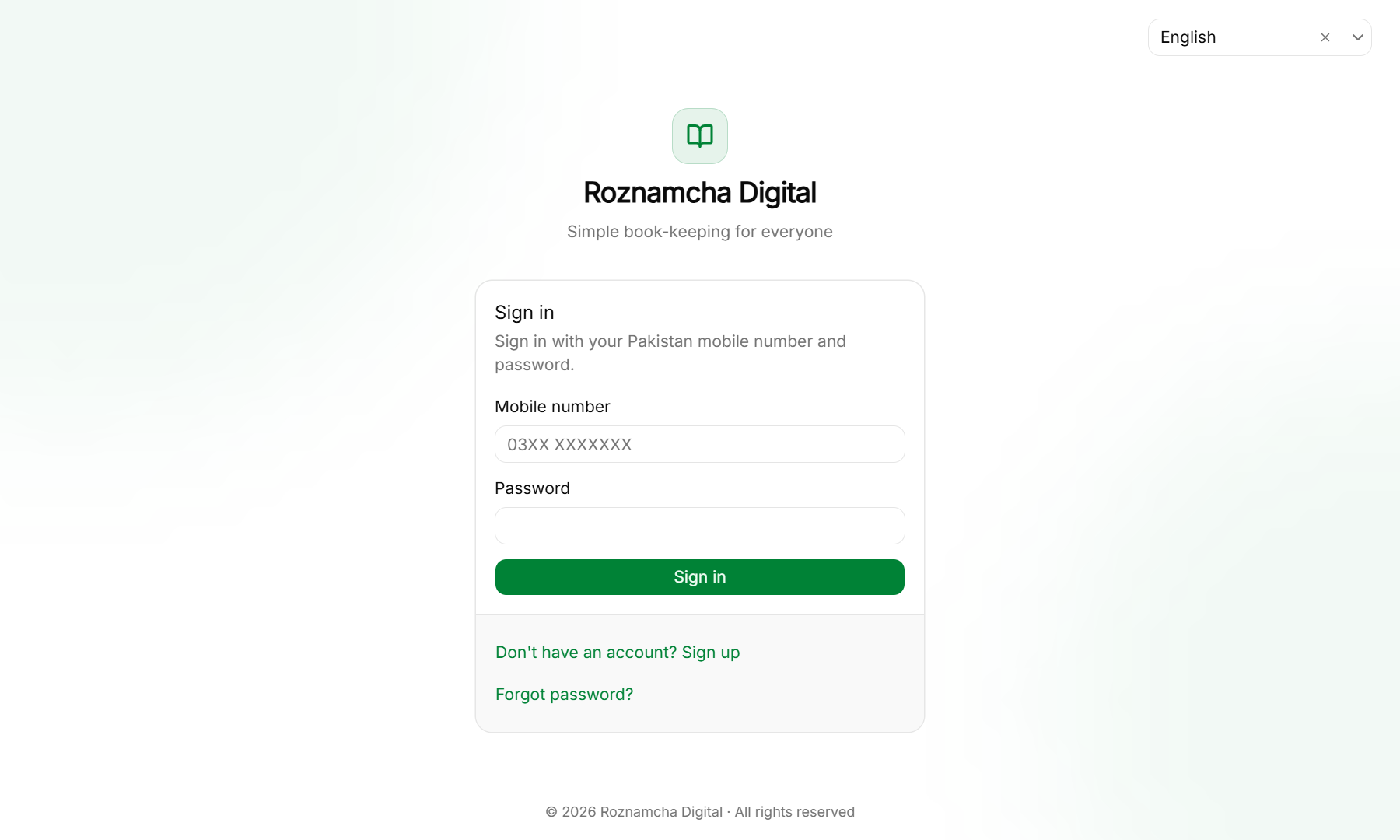
Steps to Sign In or Sign Up:
- Launch Roznamcha Digital.
- First-Time Users: Click Sign up, enter your mobile number with country code (e.g.,
+92 300 1234567), and click Send WhatsApp OTP. - Check WhatsApp on your phone for the 6-digit verification code.
- Enter the verification code, create a strong master password, and click Verify & Continue.
- Existing Users: Enter your mobile number and password to log in. Use Forgot password? to reset your credentials via WhatsApp OTP at any time.
The Company Chooser Screen
After signing in, you land on the Choose a Company screen:
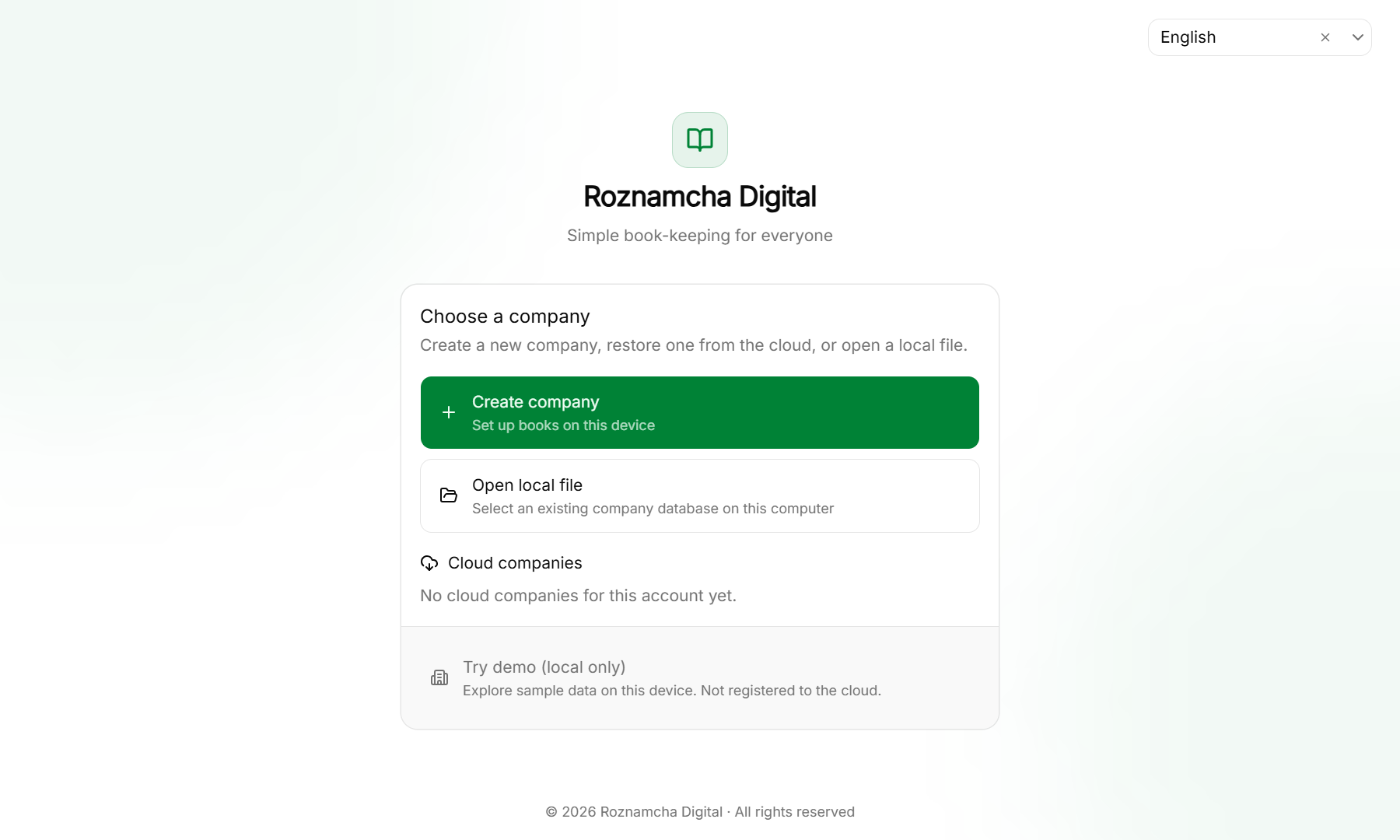
From this screen, you can:
- Create company: Launch the Setup Wizard to initialize fresh accounting books for a new business, when your plan still allows another company.
- Cloud companies: Open a company already on your account, or Set up one that has no books yet.
- Try demo (local only): Explore sample books for your kind of shop. The demo stays on this device.
The 4-Step Setup Wizard Walkthrough
When creating a new company, a 4-step wizard configures your business defaults:
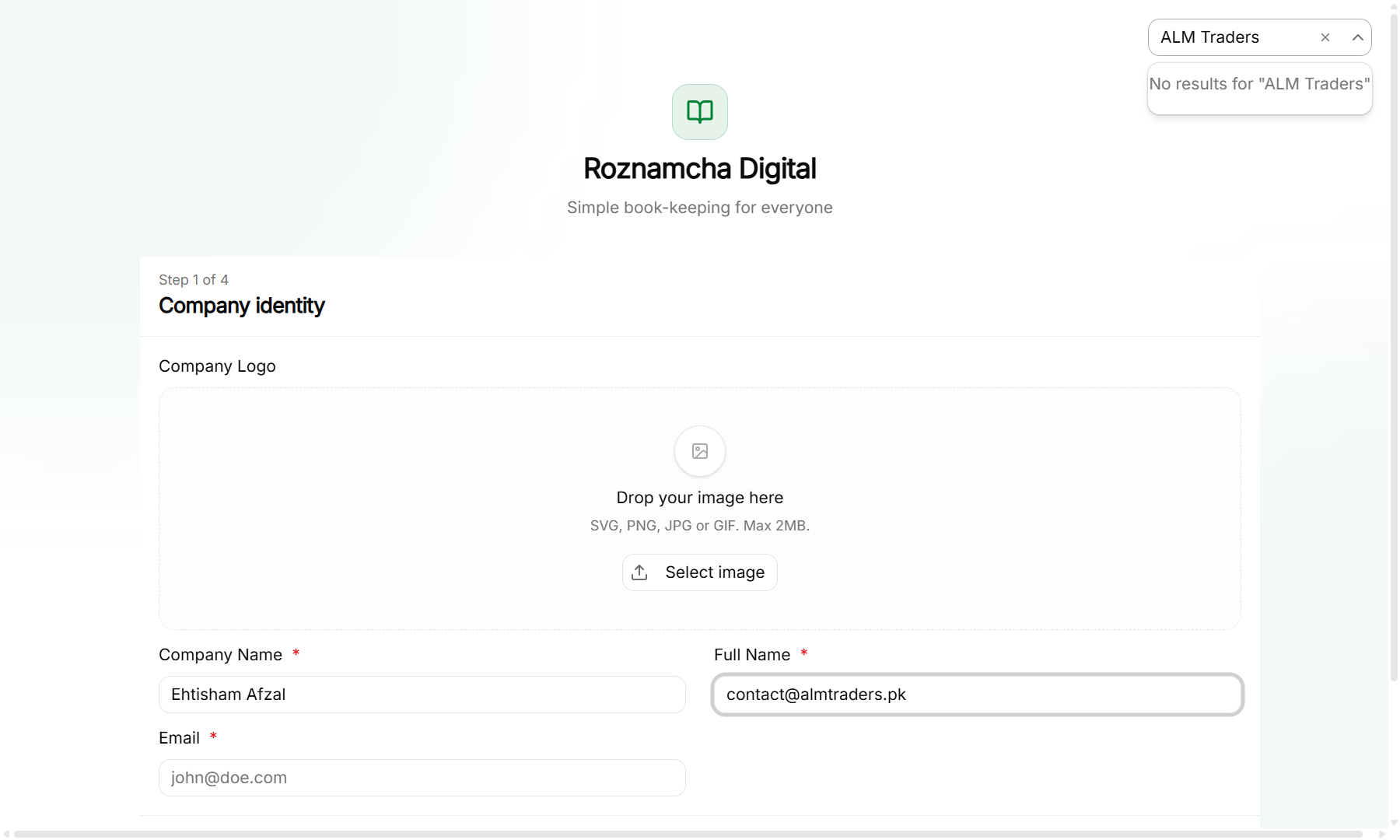
Step 1: Company Identity & Currency
- Company Name: Your official registered business name (e.g. Al-Rehman Electronics & Trade). This appears on all printed invoices, quotations, and official reports.
- Abbreviation: A short 3–5 letter prefix (e.g.
ARET) used when generating auto-numbering series for invoices and accounts. - Base Currency: The currency in which your General Ledger and Balance Sheet will be calculated (
PKR,USD,AED,EUR,SAR,GBP). - Fiscal Year Range: The official tax year for your business (e.g., July 1 to June 30 in Pakistan, or January 1 to December 31 in standard calendar years).
Step 2: Regional Accounting & Tax Framework
Roznamcha Digital automatically loads the appropriate Chart of Accounts and Tax Framework based on your selected country:
- Pakistan Preset: Pre-configures standard FBR Sales Tax (18%), Provincial Services Sales Tax (PRA 16%, SRB 13%, KPRA 15%, BRA 15%), and Withholding Tax deduction accounts.
- International / Standard Preset: Configures standard Output VAT, Input VAT recoverable, and generic trade sales/expense groups.
Step 3: Default Bank & Cash Accounts
- Enter your main business bank name (e.g., Meezan Bank Current A/C or HBL Operating A/C) and opening Cash in Hand drawer name.
- Roznamcha Digital automatically links these to your Bank and Cash Accounts ledger group.
Step 4: Company Logo & Contact Details
- Upload your high-resolution company logo (
.pngor.jpg). - Enter your business address, phone number, email, and tax registration number (e.g., NTN / STRN / TRN / GSTIN).
- Click Finish Setup. Roznamcha Digital initializes the local database file in under 2 seconds.
Account Settings, Cloud Snapshots & Companies
Manage your sign-in, sync status, cloud snapshot history, and registered companies in Settings → Account. You can also open it from the sidebar user menu (Account or Companies).
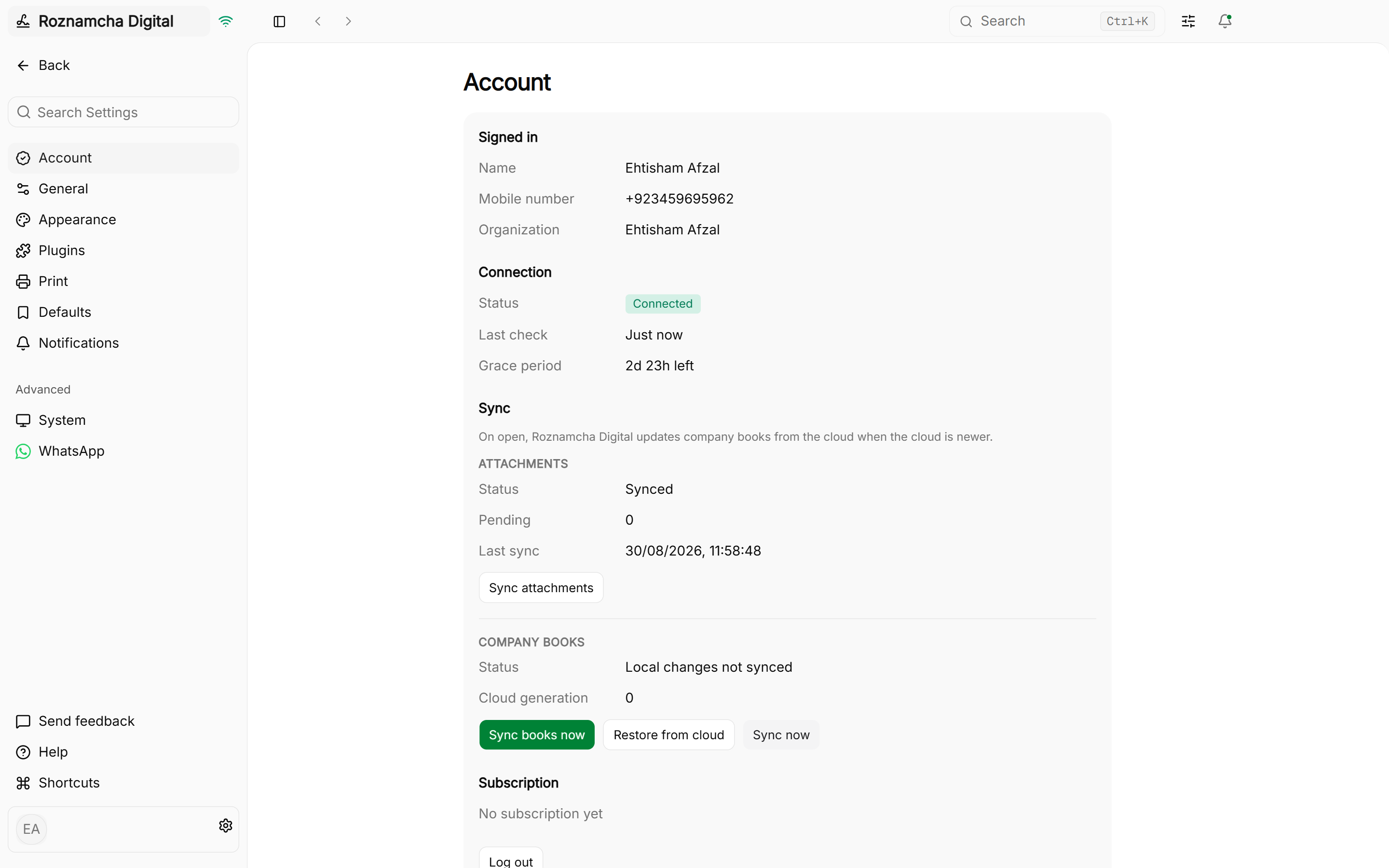
Signed in & connection
- Photo, Name, Mobile number, and Organization for your cloud account.
- Connection shows online/offline status, last check time, and any offline grace period.
Sync
- Attachments: pending upload queue and Sync attachments.
- Company books: last snapshot time, Sync books now, Snapshot now, and Update from cloud when this device is behind the cloud copy.
- On open, Roznamcha Digital updates company books from the cloud when the cloud copy is newer.
Cloud snapshots
Cloud backups are full copies of your company books at a point in time. Roznamcha Digital keeps:
- the newest five copies,
- one snapshot per day for seven days, and
- one snapshot per month for twelve months.
Recent snapshots appear under Cloud snapshots (labeled Latest, a daily date, or a month). To undo a mistake on this device only, click Restore an older copy…, choose a copy, confirm, and click Restore this copy. Newer cloud backups stay available; entries you added on this device after that snapshot are replaced. Attachments uploaded after that snapshot may be missing until file sync catches up.
Expand How snapshots work in Account settings for the full explanation.
Companies
- View cloud-registered companies, Open or Set up another company, Create company, or Switch company.
- With one company, Account settings shows a simplified summary of the open company and last cloud backup.
- Delete this company… (danger zone) permanently removes the company from this device and your cloud account, including cloud snapshots.
Plan and free trial
A new account includes a 14-day Business trial. During the trial you can use the app and cloud sync. In the last 3 days, the sidebar reminds you to choose a plan.
When the trial ends, Roznamcha Digital signs you out on every device. Sign in on the website, pay for a plan, then sign in to the app again.
A paid plan that later ends is different. Cloud sync pauses immediately, and the app stays open for 3 days so you can renew. After those 3 days the app signs you out until the plan is paid.
Prices, your account photo, and signed-in devices are in Plans, Billing & Signed-in Devices. In the app, Settings → Account → Manage billing opens that website page.
Multi-Company Management
Each company uses its own database file. The Business plan registers one cloud company. At that limit, Create company says Your plan already includes 1 company. Open it below. More than one branch is an Enterprise request, not a second checkout.
Switching companies
- Open Settings → Account (sidebar user menu → Account or Companies).
- Click Switch company to return to the Choose a company screen.
- Open another registered company or pick one from Cloud companies.
Creating an Additional Company:
- From Choose a company, click Create company when your plan still has room.
- The Setup Wizard runs for the new books. On Business, that button stays off once your one cloud company exists.
Real-World Scenario: Setting up a Dual-Entity Business
Scenario: Bilal operates two businesses: a retail boutique in Islamabad and a textile wholesale warehouse in Faisalabad. He wants completely separated financial ledgers and different invoice series.
- Action: On the Business plan he runs the Setup Wizard once, for “Bilal Fashion Boutique”, with currency PKR and POS retail templates. The textile warehouse needs its own books, so he uses Contact sales for Enterprise (multi-branch) instead of creating a second cloud company on the same plan.
- Result: The boutique stays one isolated company file with its own cloud snapshots. A second branch is a separate Enterprise arrangement, not another company on the same Business plan.
Common Pitfalls & Best Practices
Double-Check Base Currency Before Posting Transactions: Once you post your first transaction, the Base Currency cannot be changed, because all historical ledger entries are valued in that currency.
Set Accurate Tax Registration Numbers in Company Profile: Ensure your NTN / STRN / TRN is entered in Settings > Company. This automatically injects compliant tax identifiers into your invoice print templates.
Knowledge Check
Foundations & Interface Mastery
Master the desktop interface, executive dashboard KPI analytics, global quick search palette, and keyboard navigation shortcuts.
Plans, Billing & Signed-in Devices
Choose Business, Enterprise, or Custom, pay a prepaid period with SafePay, set your account photo, and sign out other devices.